Introduction to Google Docs Spreadsheets
By Stephen Bucaro
A spreadsheet is an application that is used in business and science to store data
and formulas and allow you to easy perform calculations on the data. A spreadsheet
can be vital to creating budgets, book-keeping, and accounting. They can also be
vital to scientific research for applying mathematical functions on large volumes
of data. Many people use a spreadsheet as a substitute for a database.
Google Docs is an online office
suite consisting of a word processor, a presentation creator, a spreadsheet, and a form
generator. The great thing about Google Docs is that you don't need to download anything,
all you need is an Internet connection and a Gmail account. And the documents that you
create are available where-ever you can get an Internet connection because your files can
be stored online. With Google Docs spreadsheets you can import and export of .xls,
.csv, .txt and .ods formatted data.
Entering Your First Formula
To open a new spreadsheet, after you log in to Google Docs, in the blue menu bar click
on New | Spreadsheet. A new spreadsheet will appear with the name "Unsaved spreadsheet".
One of the first things you might notice in the new spreadsheet is the the sortbar.
Why the sortbar is placed below rather than above row 1 is anybody's guess. I find this
to be the most annoying possible location. You can move the sortbar by dragging the hatched
gray box at the left of the sortbar. The idea of the movable sortbar is to allow you to
separate a column into two differently sorted parts. You can sort your data in one order,
then move the gray bar to the row where you'd like the sorting order to change. For now,
drag the sortbar to above row 1 to get it out of the way.
After you get the sortbar out of the way, you'll notice that one of the cells has a dark
blue border. This the selected cell. You can only enter data in the selected cell. You can
select any cell in the spreadsheet by simply clicking on it. For now, if the cell in the
upper-left corner of the spreadsheet is not selected, click on it.
You can enter a value in the selected cell by pressing keys on your keyboard. For example,
enter the number 16 in the selected cell and press [Enter]. After you press [Enter],
the cell directly below the first cell will automatically be selected. Let's type the
number 28 in that cell and press [Enter]. The cell directly below that cell will
automatically be selected.
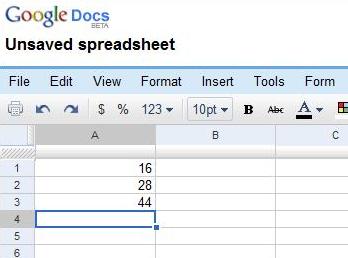
Now here's where we enter our first formula. In the selected cell, enter the formula
=A1+A2 and press [Enter]. After you press [Enter], the formula will not appear
in the cell, but the results of the formula 44 will appear. You have entered your
first formula.
| 

 About BTH
 User Agreement
 Privacy
 Site Map
 Contact
 News Feeds


 Follow @Stephen Bucaro
 RSS Feed
 General Web Design


