

One of the first settings you need to choose when scanning an image is the DPI (Dots Per Inch). This is a very confusing parameter and is often set incorrectly. Scanning an image with an incorrect DPI setting can result in a blurry or slow-loading picture.
The first place you encounter DPI is your computer screen. Let's assume that you have a 19 inch monitor. The 19 inch dimension is the "diagonal" measurement of the front of the CRT (Cathode Ray Tube). Because the CRT needs trim around it, the actual visible screen dimension is smaller than 19 inches.
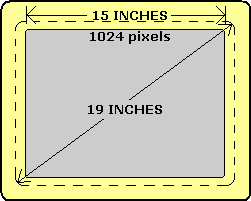
Note: LCDs (Liquid Crystal Displays) don't need trim so you get the full diagonal dimension as visible screen.
Your 19 inch CRT computer screen ends up being about 15 inches in width.
The image on the screen actually consists of an array of dots called "pixels". If you set your screen to 1024 x 768 resolution, your screen has 768 rows of 1024 dots. Dividing 1024 by 15 results in your computer screen having 68 DPI. To scan an image to appear the same size on the screen as the original picture, set the scanner to 68 DPI.
There are many different size computer screens, all set to various resolutions from 640 x 480 to 1280 x 1024 and higher. Using the above method, you can calculate the DPI for your specific computer screen. Your image will only appear "actual size" on screens that are the same size and set to the same resolution as yours.
Note: New technologies like "style sheets" and "XML" are designed to let you display an image with a specified size on any computer screen, but this has not yet been perfected.
 Size on computer screen |
Size on printer |
Let's assume that you scanned a three inch square picture at 68 DPI so that it will display in actual size on your computer screen. Then you send it to your printer. Surprise! Your printer prints a 3/4 inch square picture. That's because your printer is is 300 DPI.
Applications like Microsoft Word let you "resize" the picture on the document. But what are you really doing? You're shrinking and stretching the display of the picture, not the image data itself. When you stretch the picture, the computer uses a method called "interpolation" (guessing) to add more dots to the image. This results in a blurry picture.
You might use a graphics application to "sharpen" the picture. To sharpen the picture, the graphics application selects a square area of dots in the image, called a "window". It applies a mathematical function to the dots in the window. The color and brightness of the central dot in the window is set to the result of the mathematical function. This operation is applied to every dot in the image, resulting in the "illusion" of sharpness.
Sometimes sharpening can bring out some previously unseen details in an image, but the resulting image is not real, it's created from "made up" data. If overdone, sharpening can result in distortions in the image. Image processing, such as sharpening, has its uses, but for medical or scientific purposes you have to keep in mind that the resulting image is not real, it has been "doctored".
When you scan a picture with a high DPI setting, you get a large image, and a large image file. Applications like Microsoft Word will let you resize the picture in the document, but the image file stays large. This causes the document containing the picture to load slowly.
If you use a graphics application like Windows Paint to reduce the size of an image, the picture AND the image file size will both be smaller. The Paint program will decrease the size of the image by throwing out some of the image data, but that doesn't effect the picture sharpness because you end up with the same image data you would have if you scanned with the proper DPI setting.
The best solution is to scan the picture with the DPI set so that resulting picture will be displayed in actual size. Using the DPI of the device that the picture will be displayed on, and the size that you want the picture to be displayed, you can calculate the proper DPI setting for the scanner.
If you plan to use the same image on two different devices with different DPIs, you may have to accept the slow load times of a large image file in order to avoid a blurry picture on the device with the higher DPI.
If you Do Not want to calculate DPIs, you can scan the picture, then display it in actual size on the target device. If the picture is too small or too large, you can then rescan at a different DPI. You don't have to scan at the exact DPI required to get an actual size image. A little resizing by the application won't make a big difference. But if the image is only half the size it needs to be displayed at in the final application, the result will be a blurry picture. If the image is twice the size that the picture needs to be in the final application, the image file will take four times as long to load as it needs to.
If you want to go the mathematical route, just multiply the size (width in inches) that you want the picture to display by the DPI of the device that you want to display it on.
picture size X device DPI = total dots
Then divide the actual size (width) of the original picture by the result of the above calculation. The result is the DPI setting for the scanner.
original size / total dots = DPI
You also need to understand image file formats. The Windows operating system's native image file format is the "bitmap". This format creates image files with the extension ".bmp". A bitmap file is almost never compressed.
GIF is a common file format for the Web. A GIF file is almost always compressed. GIF file compression does not result in loss of image quality. The GIF file format is ineffective in reducing the file size of photograph type images.
The JPEG format is a common file format used to display photograph type images on the Web. This format creates image files with the extension ".jpg". JPEG compression almost always results in loss of image quality.
JPEG compression makes image files smaller by "throwing out" some of the image data. A good graphics application will allow you to control the amount of compression you apply to an image. Too much compression results in blurry picture.
What does image file format have to do with DPI? Well, if you end up with a blurry picture, it could be the result of scanning with a DPI setting too low, or it could be the result of a JPEG compression setting too high.

More Graphics Design Tips:
• SVG Basic Shapes Tutorials
• Graphics Design for Beginners - Blur Filters
• MathML Basic Elements
• Anti-Aliasing
• How to Make a Video Game for your Xbox for Free
• Tips and Tricks for Getting Free Images
• How to Trace an Image Using Photoshop
• The Browser Safe Palette
• Graphics File Formats for Your Web Page
• The Game Maker's Apprentice