
Inkscape is a free Open Source vector graphics illustration application that works similar to Adobe Illustrator. Unlike a raster graphics drawing application, a vector graphics editor allows you to use your mouse to edit your image by selecting and dragging points on the geometrical objects in the image.
Inkscape supports features like shapes, paths, text, text-on-path, flowed text, transforms, layers, gradients, gaussian blur, alpha blending, bitmap tracing, and much more. It be used for creating images such as icons, flags, logos, maps, diagrams, etc., and through use of Gaussian blur, its capable of producing images of near photographic quality.
Inkscape is an Open Source application that comes in versions for Microsoft Windows, Linux, Mac OS X, and other operating systems. It can be downloaded for free from the Inkscape website.
In this article you'll learn your way around the Inkscape interface, including its toolbars and menus. You'll learn how to zoom and pan to navigate your drawing canvas. And you'll learn how to save and open your drawing files.
Inkscape Main Window
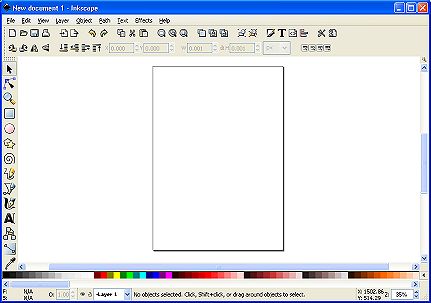
Shown above is the Inkscape main window. At the top of the window is the main menu bar, which contains the usual File, Edit, and View menus, along with menus specific to vector drawing, including Layer, Object, Path, Text, and Effects. The Help menu contains several very good tutorials.
Below the main menu bar is the Command Bar. It provides many functions similar to the main menu bar, except in a button format. Below the Command Bar is the Tool Control Bar which provides you with commands related to the currently selected tool in the toolbox.
On the left side of the main window is the Toolbox. The Toolbox contains buttons that let you access the vector drawing tools provided. At the top of the Toolbox is the Select Tool which is used to select areas and objects. Below that is the Node/Handle tool, which is used to select and control nodes and handles.
The Toolbox also contains icons to draw various shapes, lines, and curves, along with tools to create calligraphic lines, text, and gradients. The best way to learn these tools is to experiment with them.
At the bottom of the window is the Palette. The Palette provides a way to change an object's fill colour or stroke color. Below the Palette is the Bottom Toolbar which contains controls to modify the Fill and Stroke, select the Layer, set the Zoom, and it contains a Status area that provides information and help related to your current operation.
In the center of the window is the drawing area, which displays the Page Border.
Basic Inkscape Navigation
Drawing with Inkscape will be difficult if you aren't familiar with zooming and panning around the drawing area. To become familiar zooming and panning you should first draw a basic shape. In the Toolbox, click on the rectangles and squares tool. Then press the left mouse button inside the page border and, while holding down the mouse button, drag the mouse to draw a rectangle. Release the mouse button.
To do detail work, you may need to zoom in on an area of the drawing. Inkscape provides many ways to zoom. The method that you'll probably use most is the Toolbox Zoom tool. Click on the Zoom tool and drag a selection area around the rectangle in your drawing. Inkscape will zoom in on the rectangle.
To zoom out, with the Zoom tool selected, hold the keyboard [shift] key while you click the left mouse button.

A second way to zoom is by use of buttons on the Command Bar at the top of the Inkscape window. On the Command Bar you'll find buttons to zoom in, zoom out, zoom selection, Zoom drawing, and zoom page. Click on each of these buttons to observe their effect.
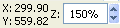
A third way to zoom is click on an up/down arrow on the Zoom control located on the right side of the toolbar at the bottom of the Inkscape window.
Many Inkscape users like to keep the mouse dedicated to moving drawing control points while using the keyboard [+] and [-] keys to zoom in and out.
Inkscape also provides many ways to pan the drawing area. The most basic way to pan the drawing is to use the scrollbars. Users who like to keep the mouse dedicated drawing scroll by holding down the keyboard [Ctrl] key while pressing an arrow key.
You will find that the Toolbox Zoom tool can also be used for navigating the drawing area. With the Zoom tool selected, attempt to select a zoom area that extends beyond the border of the Inkscape program window. This will cause the window to pan.
Managing Documents
When you open Inkscape, it automatically creates a new empty document. To save your drawing, in the main menu select File | Save As..., and in the "Select file to save to" dialog box, enter a name for the file, then navigate to a folder to save the file in. If you're using the Windows operating system, make sure the "Append filename extension automatically" checkbox is checked. Click on the [Save] button.
Inkscape saves the file in the W3C standard Scalable Vector Graphics (SVG) file format. Besides SVG, Inkscape can import and export several other formats (EPS, PNG).
To open a previously saved document, in the main menu select File | Open, and in the "Select file to open" dialog box, navigate to the folder containing the file and highlight the filename. The dialog box will display a preview of the drawing in the file. Click on the [Open] button.
In this article you learned some Inkscape basics. You became familiar with Inkscape's toolbars and menus. You learned several ways to zoom and pan to navigate around your drawing. And you learned how to save and open drawing files.

More Graphics Design Tips:
• Inkscape Basic Fill
• Inkscape Basics
• Export Inkscape Drawing as an Image
• Drawing Text with Draw SVG
• Five Surprising Reasons I Use Krita for Photo Editing
• SVG Basic Shapes Tutorials
• Inkscape Text on Path
• Basic Inkscape Vector Drawing
• How to Install the Free, Open-Source, Blender 3D Animation Application
• MathML Basic Elements