Have you created a software product, digital product, or other product that could use an attractive box? This article contains step-by-step instructions for making an attractive box for your product using Photoshop.
Welcome to Bucaro TecHelp!

Welcome to Bucaro TecHelp!
Maintain Your Computer and Use it More Effectively
to Design a Web Site and Make Money on the Web

About Bucaro TecHelp About BTH User Agreement User Agreement Privacy Policy Privacy Site Map Site Map Contact Bucaro TecHelp Contact Advertise on Bucaro TecHelp Advertise Here RSS News Feeds News Feeds

HTML5 Solutions: Essential Techniques for HTML5 Developers

Essential Techniques for HTML5 Developers

HTML5 brings the biggest changes to HTML in years. Web designers now have new techniques, from displaying video and audio natively in HTML, to creating realtime graphics on a web page without a plugin.

This book provides a collection of solutions to all of the most common HTML5 problems. Every solution contains sample code that is production-ready and can be applied to any project.

Click Here

How to Create a Product Box in Photoshop

Do you want to design an attractive box for your product? With Photoshop, you can easily create one, just like this:
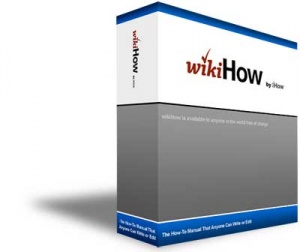
Final product box image

Steps

1. Start Photoshop and create a new document by typing CTRL+N. To have plenty of space to work with, for "Name:" enter ProductBox, "Width:" enter 600, for "Height:" enter 600, "Resolution:" enter 72, and "Background Contents:" enter White. Click "OK."
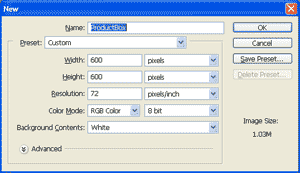
Create a new document

2. Add the front and side of the box.

1. Create a front and side for the product box as separate documents, or open the front and side images downloaded from the "Things You'll Need" section below. For this How-to, the images being used are the downloaded images. If you want to create your own front and side, download the images from below and use them as a starting point for your own images.

2. Activate the product_box_front document by clicking its toolbar. Type CTRL+A to select the entire document, and then CTRL+C to copy the contents of the document.

3. Activate the ProductBox document we just created by clicking its toolbar. Type CTRL+V to paste the front of the box into the document.

4. Activate the product_box_side document by clicking its toolbar. Type CTRL+A to select the entire document, and then CTRL+C to copy the contents of the document.

5. Activate the ProductBox document we created, and type CTRL+V to paste the side of the box into the document. You can now close the front and side of the box documents, you don't need them anymore.

Web Design Sections

RSS Feed RSS Feed

Google Reader or Homepage
Add to My Yahoo!
Subscribe with Bloglines
Subscribe in NewsGator Online

Add to My AOL
Add to Technorati Favorites!

Graphics Design
Pencil Free Open Source Cartoon Animation Drawing Program
Animation Software - The Amazing 3D World
Graphic Design Meets Open Source
Anti-Aliasing
Free Animated GIF Maker
Paint Shop Pro : Version 4 Was Best
Graphics File Formats for Your Web Page
The Browser Safe Palette
Image Scanning : Confused About DPI?
An Insight to Logos
Building an Image with a Logo
CSS Button Designer
What is the Pantone Color System?
Color Harmony in Web Design
RGB Color Schemer
RGB Color Schemer FAQs
RGB Vs CMYK
Hexadecimal Color Notation on the Web
Web Designer's Reference
Beginning GIMP: From Novice to Professional
The Game Maker's Apprentice
The Blender Gamekit
Stop Motion Animation: Nine Creative and Easy Techniques
How to Make a Simple Video
How to Create a Simple Video with Windows Movie Maker
How to Embed a YouTube Video in Your Webpage
Free eBook - How to Be a Video Game Designer
How to Make a Video Game for your Xbox for Free
Get GIMP - Free Replacement for Overpriced Photoshop
Use GIMP to Scale (Resize) an Image
Graphics Design for Beginners - Cropping Images
Graphics Design for Beginners - Blur Filters
Create GIF Animations With Free GIMP Image Editing Program
How to De-haze a Photo with GIMP
How to Make Beautiful Skies with GIMP
Inkscape - Free Vector Graphics Illusttration Package
Inkscape Basics
Basic Inkscape Vector Drawing
Inkscape - How to Add a New Node
Inkscape - How to Join Two Segments at Endnodes
How to Place Greek Letters in an Inkscape Drawing
How to Make a Simple Animated Banner in Flash CS3
How to Trace an Image Using Photoshop
How to Create a Product Box in Photoshop


[Site User Agreement] [Advertise on This site] [Search This Site] [Contact Form]
Copyright©2001-2011 Bucaro TecHelp 13771 N Fountain Hills Blvd Suite 114-248 Fountain Hills, AZ 85268

