
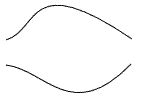
To combine two different paths into one path, you need to join the endnode of one path to the endnode of the other path. To join two endnodes, overlap the two endnodes on top of each other, then combine the paths, then join the endnodes. These steps assume that you have already drawn two line segments e.g. using the Bezier Curves and straight lines tool.
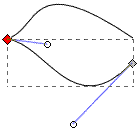
1. Use the Edit path nodes tool
 to overlap the endnode of one path on top of the endnode of the other path. The more
accurately they overlap the more successful the node joining will be. You may need to
zoom in to get greater accuracy.
to overlap the endnode of one path on top of the endnode of the other path. The more
accurately they overlap the more successful the node joining will be. You may need to
zoom in to get greater accuracy.
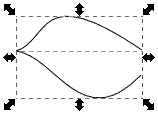
2. Use the Select objects tool  to draw a box around both segments.
3. In the main menu select Path | Combine.
4. With the combined segments still selected, click on the Edit path nodes tool
to display all nodes in both segments.
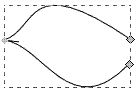
5. With the Edit path nodes tool still selected, draw a box around the nodes that you want to join. (The box outline may not appear, but the endnodes have been selected).
6. Click on the Join selected endnodes button
 in the toolbar.
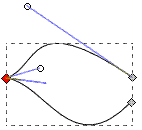
• The Join selected endnodes button almost never properly joins two endnodes, no mater how accurately you overlap both endnodes (even if you set snap to grid). It almost always joins the two endnodes with a new segment, as if the Join selected endnodes was wired to the same function as the Join selected endnodes with a new segment button. The solution is to, after joining the nodes, delete one of the nodes.
7. With the Edit path nodes tool
selected, click on the "joined" node and click on the Delete selected nodes button
 .
.
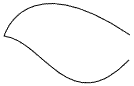
The two segments will now be properly joined.

More Graphics Design Tips:
• SVG Basic Shapes Tutorials
• SVG For Responsive Web Design
• Pencil Free Open Source Cartoon Animation Drawing Program
• Building an Image with a Logo
• Inkscape - Free Vector Graphics Illustration Package
• How to Trace an Image Using Photoshop
• How to Create a Game App
• How to Use Draw Bezier
• Tips For Hand Coding MathML
• Anti-Aliasing