Set an Element's Display Property
By Stephen Bucaro
Although it may not seem apparent, everything on a webpage is in a box. It's apparent
that certain elements, like tables are in boxes, but what if you just enter some text?
Actually, good web design requires that everything on a webpage be inside a container.
So text should be inside a <p> paragraph or other type of container. But if you
just enter text, the browser automatically puts it inside an anonymous box.
When you load a webpage into a browser, it flows the boxes onto the page. The normal
flow is from left-to-right from top-to-bottom. This type of flow is called inline.
But some html elements flow as a block. A box that flows as a block has an embedded
line-return before and an embedded line-return after its box.
An example of an inline element is a <span>. A span, and its contents will flow
inline on the webpage from left-to-right from top-to-bottom along with the other inline
elements. It will flow along the same baseline as text on the webpage.
<span style="border-style:solid; border-width:2px; display:block; width:250px;">
Element One Element One Element One Element One
Element One Element One Element One Element One
Element One Element One Element One Element One
</span>
Shown above is code for a span element. A span element is an inline element, but
setting its display property to block and setting its width property
makes it an inline-block in Internet Explorer
An example of a block element is a <div>. A div, and its contents will break the
left-to-right from top-to-bottom flow pattern and move to the left side of the webpage.
It will also cause the next element following the div in the html to move to the left
side of the webpage. The <p> paragraph is another block element.
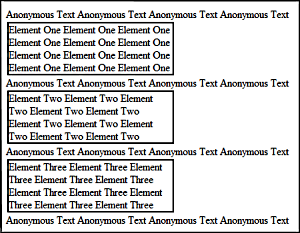
Block elements
The nice thing about a block element is that you can give it a width and
height. The W3C specification does not accept the width property for inline
elements. An inline element will stretch horizontally as long as required to flow
its contents. The W3C specification does not accept the height property for inline elements.
The height of an inline element is the same as the line-height.
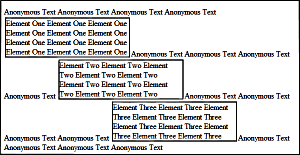
Inline elements in Internet Explorer with
width value accepted.
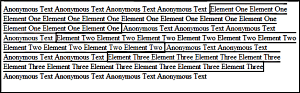
Inline elements in Firefox with
width value ignored.
| 

 About BTH
 User Agreement
 Privacy
 Site Map
 Contact
 News Feeds


 RSS Feed
 Follow @Stephen Bucaro
 General Web Design

