Create CSS Button Rollovers
By Stephen Bucaro
A "rollover" is an effect produced when the user moves their mouse over a webpage element. The
most common web page element to which a rollover effect is applied is a button, although the
rollover effect is frequently applied to text links as well. The most common rollover effect is
to make the button text and/or the button itself to appear to "light up" when the user moves their
mouse pointer over it, and to make the button appear pressed when the user presses the mouse button
while the mouse pointer is over the button.
A rollover effect is usually created using Java Script. You need three separate button images,
one for the "up", "over", and "down" button states. Java Script functions assigned to the html
image tag onMouseover, onMouseout, onMousedown, and onMouseup events swap the images.
One problem with this approach is the time delay required to download the replacement image. The
replacement images could be preloaded, but that increases the delay before the webpage displays
in the user's browser. Another problem is that some users have Java Script disabled in their browsers.
In this article, you'll learn how to create the rollover effect without using Java Script and
without preloading images. You'll learn how to combine the "up", "over", and "down" images into
a composite image, and how to use Cascading Style Sheets (CSS) to specify a position offset into
the image in order to display the proper section for each button state.
• In CSS the three button states are referred to as "normal", "hover", and "active".
Creating the Button Image
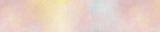
The first step in creating a button image is to choose the background graphic or texture for
the button. Trim the graphic to the desired size and make three copies of it. use an image
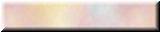
processing application to "buttonize" the fist two copies. Shown below is a trimmed background
graphic before and after it's buttonized.
Make the "hover" image appear to light up by using an image processing application to increase
the brightness of the image, as shown below.

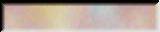
To make the "active" button image, use an image processing application to "flip" or "reflect" the
image vertically and horizontally. Then "buttonize" the image. Then flip the image back to it's
original position. This reverses the sides of the button showing light and shadow. You might also
decrease the brightness of the image to enhance the "pressed" effect.
• If you're not experienced with image processing applications, you might need to
experiment to get the images for the rollover effect perfect.
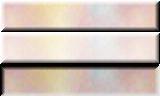
After you have completed the images of the three button states, carefully paste them into one image,
with the normal image on top, followed by the hover and active images, as shown below.
| 

 About BTH
 User Agreement
 Privacy
 Site Map
 Contact
 News Feeds


 RSS Feed
 Follow @Stephen Bucaro
 General Web Design


