
Select Start | Settings | Taskbar & Start Menu settings. In the Taskbar & Start Menu settings dialog box, on the General tab, check and uncheck boxes as shown below.
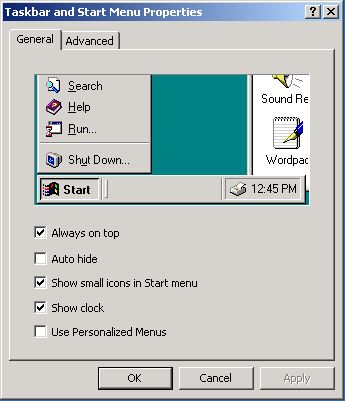
Checking "Show small icons in Start menu" reduces the size of the icons from 32 x 32 pixels to 16 x 16 pixels. Big icons just make your start menu take up more space on the screen. Unless you need big icons because of poor vision, check "Show small icons in Start menu".
Make sure "Use Personalized Menus" is unchecked. This option hides infrequently used items on the Start Menu. Just because you infrequently use them doesn't mean you want them hidden from you. If an application is hidden from you, it definitely will remain infrequently used! This option is a bad idea. Later in this series of articles, I'll show you how to manage your Start menu without hiding things from yourself.
In the Taskbar & Start Menu settings dialog box, on the Advanced tab, check and uncheck boxes as shown below.
[x] Display Administrative Tools
[ ] Display Favorites
[ ] Display Logoff
[ ] Expand Control Panel
[ ] Expand My Documents
[ ] Expand Network and Dial-up Connections
[ ] Expand Printers
[ ] Scroll the Programs menu
Note that I have left all except the first item unchecked. Displaying Administrative Tools in the Start menu is just my personal preference. If you are a system administrator, you want as many access points to the Administrative Tools as you can get. The Administrative Tools are also available in My Computer and Control Panel, so you don't really need them on the Start menu too.
Leave "Display Favorites" unchecked. Later in this series of articles, I'll show you a way to access your favorites much quicker than using the Start menu.
Leave "Display Logoff" unchecked. If your computer is a multi-user system, it's better to have users conserve energy by shutting the computer down when they are finished. In certain environments, it might be preferable to leave the system running and let users logoff; this is an administrative preference. If your computer is a single-user system, you don't need to display the Logoff dialog box.
Leave all the "Expand ..." boxes unchecked. These options create cascading menus off the Start menu rather than opening the related folder. Opening the related folder has advantages. Later in this series of articles, I'll show you how to set up Windows to use "classic folders". In that configuration, when you open the related folder, for example Control Panel, the folder provides you with a description of what each utility in control panel does.
Leave "Scroll the Programs menu" unchecked. This option displays the Start menu as a scrolling list rather than expanding columns. It's quicker to navigate expanding columns than to scroll a menu.
Windows XP
The Windows XP Start Menu uses two columns. It puts the most frequently used programs in the left column, with an "All Programs" item at the bottom. It puts links to the "My Documents" folders and some system utilities like "Control Panel" and "Printers" in the right column.
To customize your Start Menu, right-click on the taskbar and select "Properties" in the popup menu that appears. This opens the "Taskbar and Start Menu Properties" dialog box.
If you want to keep the two column Start Menu, make sure the "Start menu" radio button is set, then click on the [Customize...] button. This opens the "Customize Start Menu" dialog box. On the "General" tab, set the "Small icons" radio button to get rid of the screen space wasting large menu icons. Then click on the [OK] button.
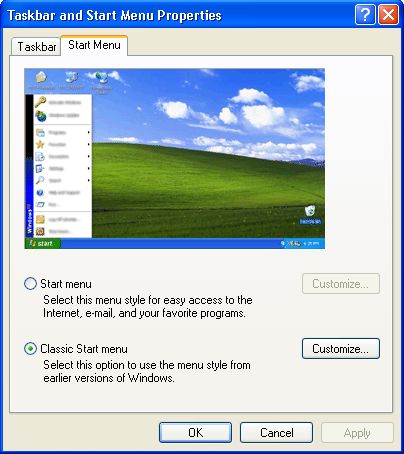
In the Taskbar and Start Menu Properties dialog box, it would be smarter to set the "Classic Start menu" radio button to get rid of the two column Start Menu. Then click on the [Customize...] button. This opens the Customize Classic Start Menu dialog box.
At the bottom of the dialog box is a list of options. Set and clear the checkboxes as shown below.
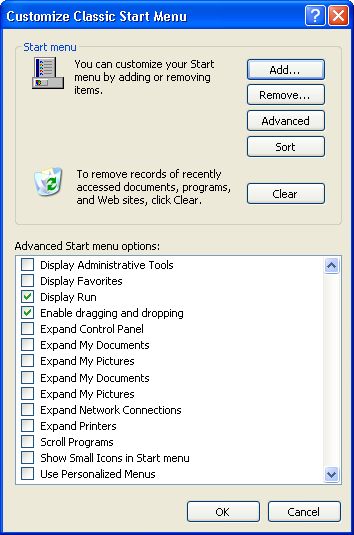
If you click on the "Advanced" button, it opens an Explorer window revealing that the Start menu is actually another view of the folder:
c:\Documents and Settings\Your Name\Start Menu and the "Programs" menu item is simply a list of the "Programs" subfolder contents. All program groups are simply subfolders and all application menu items are simply links stored in the subfolders. (you could actually store a programs executable here too).
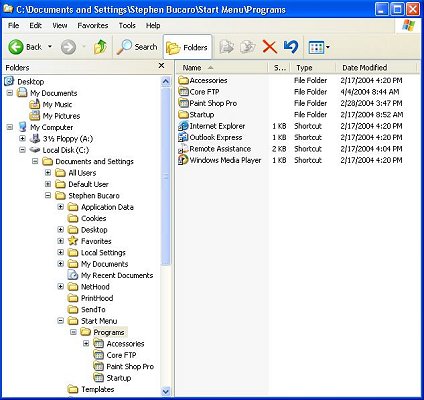
The Start Menu is actually a combination of c:\Documents and Settings\Your Name\Start Menu and c:\Documents and Settings\All Users\Start Menu. You can totally control the contents of the Start Menu by arranging the subfolders and links in these two folders.
Note: On a multi-user system you need Administrator rights to make changes to "All Users".
If you have been making the changes as advised, you will be getting quick access to your files and applications through the Quick Launch toolbar and Desktop icons. You will use the Start Menu only to access applications that you rarely use.

More Windows Tips:
• Configuring Sound for Windows Events
• How to Transfer a File From PC to Kindle
• Change Explorer's Thumbnail Size
• How to Restore Files from File History in Windows 10
• Remove Windows Components You Don't Need
• Use Windows Key Shortcuts
• How to Fix a Scratched CD
• Windows 7 - Rename a Group of Files Simultaneously
• Disable Cutesy Effects to Speed Up Windows XP
• Record Your Own Windows Startup Greeting