
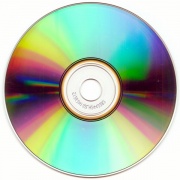
While compact discs (CDs) are remarkably durable, it's nearly impossible to prevent scratches and scuffs from occurring from time to time. The resulting damage can be either a skip in your favorite Bob Marley track or, in the case of data CDs, the loss of that spreadsheet you worked on for two weeks. Don't despair—repair! While commercial CD repair kits and CD refinishing machines are available, you may be able to repair the damage on your own with products you already have. Here's how.
Steps
1. Clean the disc. Even if a CD isn't actually scratched or scuffed, dust, oil, and other surface contaminants can prevent it from playing properly. Thus cleaning the disc should always be your first move. Run warm water over the damaged disc to remove dust. If there is stubborn dirt or grease on the disc, gently rub it with your finger while you are washing it, and use a gentle detergent (with the water) or rubbing alcohol (in place of water.) Anytime you rub or wipe a CD, you should do so by starting at or near the center of the disc and rubbing straight outward toward the edge to prevent further scratching. Shake the water off and let the disc air-dry (do not dry it with a towel or cloth).
2. Try to play the disc. Many times a good cleaning is all that is needed. If, however, problems persist after cleaning, try to play the disc in a different CD player. Some players handle scratches better than others; computer CD drives tend to be best.
3. Burn a new disc. If you can get the CD to work in one CD player — especially your computer's — but not in others, try burning a new disc. The CD burning utility on your computer may be able to read the CD well enough to produce a perfect copy. You may wish to try this even if the CD doesn't play correctly on the computer.
4. Locate the scratch. Actually repairing the disc will be easier if you can figure out where the offending scratch is. Visually inspect the CD's playing surface for scratches or scuffs. Scratches that run perpendicular to the CD's spiral — that is, those that run generally from the center to the rim — may not affect playing at all, and in any case are generally less damaging than those that roughly follow the direction of the spiral.
If there are several scratches, but the CD only skips in one or two places, you may be able to approximate the location of the offending scratches based on which track skips. Keep in mind that the first track of a CD begins near the center, and the direction of play proceeds outward to the edge.
5. Polish the CD. Though counterintuitive, polishing a disc can repair a scratched CD by removing some of the outer plastic coating and thus making existing scratches shallower. A number of common household products can be used to polish the CD, but toothpaste — especially baking soda toothpaste — and Brasso are probably the most tried-and-true.
Apply a small amount toothpaste (must be paste, not gel) or Brasso to a soft, clean, lint-free cloth: an eyeglass-cleaning cloth works well. Gently rub the cloth on the scratch or scuff in a radial motion (from inside to outside). Try to focus your efforts solely on the scratch or scratches you've identified (if possible). Polish in this manner for a couple minutes, reapplying Brasso or toothpaste to the cloth as necessary. Be careful not to apply much pressure, although you will still be able to feel the cloth gently scratching the CD as it polishes.
6. Remove polishing product from disc. If you used toothpaste, rinse the disc thoroughly with warm water and let dry. Make sure to remove all of the toothpaste and let the disc dry completely before trying to play it. With Brasso, wipe off excess product and let the rest dry. Then, using a clean cloth, gently wipe disc again.
7. Test the disc. If the problem persists, polish again for up to 15 minutes or until the scratch is almost completely buffed out. The surface around the scratch should begin to look shiny with many tiny scratches. If you still don't notice any difference after polishing for a few minutes, the scratch may be extremely deep, or you may be polishing the wrong scratch.
8. Wax the tracks. If polishing doesn't work, apply a very thin coat of Vaseline, liquid car wax, or furniture wax to the CD's playing surface. Wipe excess off using clean, soft, lint-free cloth in a radial (inside to outside) motion. If using wax, follow manufacturer's instructions (some need to dry before you wipe them off, while others should be wiped off while still wet).
9. Test disc again. If the wax or Vaseline does the trick, burn a new copy of the CD immediately. The waxing method is only a temporary solution.
10. Bring the CD in to get refinished. If the disc still doesn't play correctly, bring it in to a music store (especially one that sells used CDs) or a DVD rental store and ask if they can repair the disc for you. Many of these businesses have CD refinishing machines that do a remarkable job, and they'll probably charge you less than five dollars to repair the CD.
Tips
• Severely damaged CDs may not be repairable. Very deep scratches will probably require an industrial-quality machine to repair, and cracks or scratches that reach the CD's foil may render a CD forever useless.
• Practice repairing scratched CDs that you don't care much about before you set out to repair your favorites.
• It's a good idea to create a backup of any data disc before damage occurs.
• If a CD is scratched but continues to play correctly, make a backup, but don't bother trying to repair it yet.
• Make sure the disc is indeed scratched. If the disc is not visibly scratched, the problem likely lies elsewhere. Other problems could be surface dirt or a malfunctioning CD player. The steps above should help you to clarify where the problem is.
• Deep gouges are not repairable. However, because of the way redunancy is used in the data on the disc and the way the data are distributed along the spiral track, cleaning a disc area away from a scratch can improve data recovery; a number of smaller defects distributed along the track can be as bad or worse than one larger defect.
• The polycarbonate bottom layer of the disk acts as a lens which focuses a larger patch of laser light down to a smaller size needed to see the track on the data layer. This lets the laser look through some small imperfections on the plastic surface which are much larger than the track on the data layer.
Removing a lot of plastic can affect the refractive property of the lens making the data unreadable. This means that even a visibly scuffed or spider-web of scratches may play well because though the defects are visible to you eye the laser sees around/through them. This is why waxing can help. A repair doesn't have to look perfectly polished to work.
• If the disc has important data on it, your best choice is probably to pay the money to get the disc repaired professionally before you try to repair it yourself. That way, you can make sure you don't damage the CD any further in your repair attempts.
• A number of CD cleaning and repair kits are available for sale, but many users report that these don't work any better than Brasso, and they're far more expensive.
• If you have a lot of discs to repair, you might want to buy a CD refinishing machine. These can cost as little as $25, but highly effective industrial machines cost anywhere from $300-6,000.
Warnings
• Keep in mind that it is possible to further damage a CD if you do this incorrectly (i.e. if you apply too much pressure while polishing or rub the CD in a circular motion).
• To prevent damage to your CD player, make sure CDs are completely dry and free of excess polishing products or waxes before you attempt to play them.
• If you are using Brasso, make sure to do so in a well-ventilated area, and avoid breathing in the fumes. Always read the safety instructions and warnings on any chemical product as many (such as rubbing alcohol) are flammable and / or can cause skin, eye, or respiratory irritation.
• When touching the CD do not use a circular pattern (like when a CD is spinning). Go from the inside to the outside in a perfect line so you prevent data loss.
• When polishing the disc, make sure the surface upon which the disc is laid is flat and firm but not hard or abrasive. The data are stored on the foil or dye layers on the top of the disc (label side) and the protective top layer is very thin by comparison to the polycarbonate plastic bottom layer you will polish. The thin top layer can easily be scratched or perforated. If this happens the data are lost forever as it is not repairable by any means. Pressing on disc upon too soft a surface may crack it or cause it to delaminate.
Things You'll Need
• Clean, soft, lint-free cloth
• Water (or rubbing alcohol)
• Brasso metal polisher or toothpaste
• Liquid car wax or Vaseline (optional)
Article source: wikiHow wikiHow is a group effort to create a great resource: the world's largest free how to manual. wikiHow articles help people solve their everyday problems. wikiHow licenses all content under a Creative Commons License. The license allows wikiHow content to be used freely for noncommercial purposes. The Creative Commons License also allows for the creation of derivative works.

More Windows Tips:
• How to Remove a DVD or CD that's Stuck in the Drive
• How to Fix a Scratched CD
• How to Configure Windows 7 Autoplay
• How to Add or Remove Items from Send to Menu
• Google Apps vs Office 365
• How to Determine if You have 32 bit or 64 bit Windows 7
• Windows 10 Keyboard Accessibility Settings
• Uninstall Windows Media Player 10 and Start Enjoying Your Media Again
• Windows 10 File Explorer Ribbon
• Move a Window With Keyboard Arrow Keys