
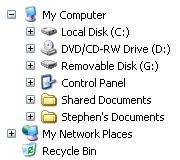
Sometimes when you install a storage device on your PC, Windows seems to assign it an arbitrary drive letter, as shown below when I plugged in my USB flash drive. To make matters worse, Windows assigns a different drive letter for each PC that I plug the flash drive into. This plays havoc with applications that run directly from the flash drive. Fortunately it's very easy to change a drive letter.
1. Select Start | Conrol Panel.
2. In Control Panel, double-click on Administrative Tools.
3. Under Administrative Tools double-click on Computer Management.
4. In the Computer Management window that appears, under the Storage branch,
click on Disk Management.
5. In the Computer Management window, in the top section of the right panel, right-click on the letter you want to change.
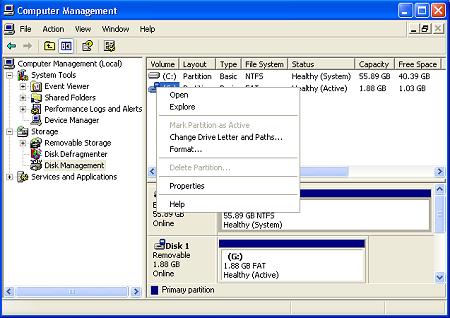
6. In the popup menu that appears, select "Change Drive Letter and Paths..."
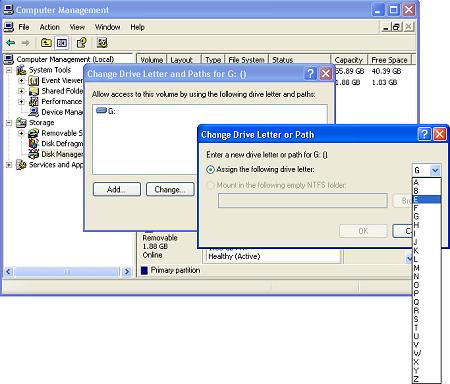
7. In the "Change Drive Letter and Paths" dialog box that appears, click on the [Change...] button.
8. In the "Change Drive Letter or Path" dialog box that appears, select a letter from the drop-down list.
• I would recommend to NOT use the letters A or B because these letters are reserved for legacy floppy drives.
9. Click on the [OK] button. A message box will appear with the message "Changing the drive letter of a volume might cause programs to no longer run. Are you sure you want to change this drive letter?" Click on the [Yes] button.
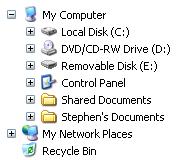
As shown above, the drive letter for the USB flash drive changed from G: to a more logical E:. Now I can use applications that run directly from the flash drive without performing major reconfiguration.

More Windows Tips:
• How to Add and Remove Desktop Gadgets
• Display Multiple Clocks in Windows 7 Taskbar
• Windows 10 Keyboard Accessibility Settings
• Google Apps vs Microsoft Office 365: Which is Best for Your Business?
• Uninstall Windows Live Messenger From Windows 7
• Read Any ePUB eBook Inside Firefox With EPUBReader Plugin
• Configure Windows 7 File Contents Searching
• My Favorite Windows 7 Tips and Tricks
• Make PDF eBooks Read Themselves Outloud
• Free Goodies for Your PCs