
If you're a heavy computer user, you have many different folders for your documents, spread sheets, pictures, music and other things. In previous articles, I mentioned that the quickest way to access the files on your computer is to put them on your desktop.

But whether viewing your folders in Windows Explorer or on the desktop, one thing that can slow you down is that they all use the same beige-colored icon. Fortunately, it's easy to change a folder's icon.
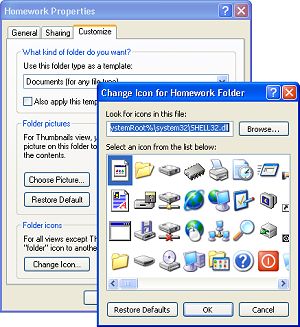
1. Right-click on the folder, and in the popup menu that appears, select Properties.
2. In the folder's Properties dialog box, select the Customize tab.
3. On the Customize page, near the bottom of the page, click on the [Change Icon...] button.
4. In the Change Icon for ... folder dialog box that appears, select an
icon from the list, then click on the [OK] button.
• The icons displyed in the list are all embbeded in the file Shell32.dll in the System32 folder. If you don't like these icons, click on the [Browse...] button and browse to a different file (.exe .dll or .ico) in the System32 folder, or any other folder. When you click on the [OK] button, Windows will either display the icons embedded in the file, or give you the message: "file contains no icons".
5. In the folder's Properties dialog box, click on the [Apply], then the [OK] button.

With different icons it's easy to locate the folder you need.

More Windows Tips:
• Why My Office Files Do Not Open
• Steps to Fix a Wet Laptop
• How to change a Folder's Icon
• Add the Undo Button to File Explorer in Windows 10
• Change the Mouse Pointer
• How to Repair a Damaged Excel File
• The Secret to Passing the Microsoft Office Specialist Exams
• Turn Off Windows 7 Taskbar Preview Thumbnails
• Make Windows 10 Mouse Pointer More Visible
• Windows 7 - Five Ways to Move or Copy Files or Folders