
Whenever you use Internet Explorer (IE), it tracks which Web sites you visit and which webpages you view. This is to make it easier for you revisit a webpage you viewed recently. It can also be used by some else who shares your computer to track what you have been up to. To cover your tracks, you can easily delete items from the history list.
To remove a specific item from the history list:
1. In IE's toolbar, click on the [History] button to open the "History" panel.
2. Right-click on an item in the history list that you want to delete.
3. In the popup menu that appears, select "Delete".
4. In the warning message box "Are you sure you want to delete History Item:..."
that appears, click on the [Yes] button.
If there are dozens of links in the history list, it would be faster to delete everything from the history list.
To remove all items from the history list:
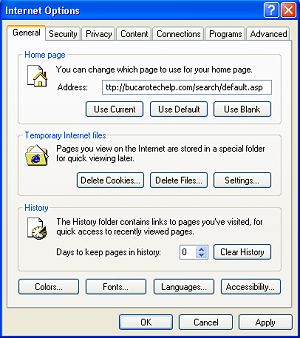
1. In IE's toolbar, click on the "Tools" menu and select "Internet Options..."
to open the Internet Options dialog box.
2. In the Internet Options dialog box, on the General tab, in the History
section, click on the [Clear History] button.
Of course some else who shares your computer might find it annoying that you deleted their history as well as yours. In this case you can utter something like "damn Internet viruses!".
If you find it annoying that IE tracks your Internet activity at all, you can disable the history list.
To disable the history list:
1. In IE's toolbar, click on the "Tools" menu and select "Internet Options..."
to open the Internet Options dialog box.
2. In the Internet Options dialog box, on the General tab, in the History
section, set the "Days to keep pages in history" number to 0.
Unfortunately, IE's definition of 0 days does not include today, so before you close IE, you still have to click the [Clear History] button in the Internet Options dialog box.
IE maintains a special folder, referred to as the "browser cache", that contains every webpage, image, sound, and video, that you have recently heard or seen on the Internet. This folder even contains special text files called "cookies" that can track details about actions you took on a specific web site. The purpose of the browser cache is to make Web browsing faster by fetching, from your local computer, pages you already visited rather than taking longer to pull them over the Internet connection.
To view the actual contents of the cache, open the folder: C:\Documents and Settings\[username]\Local Settings\Temporary Internet Files"
To empty the browser cache:
1. In IE's toolbar, click on the "Tools" menu and select "Internet Options..."
to open the Internet Options dialog box.
2. In the Internet Options dialog box, on the General tab, in the Temporary
Internet Files section, click on the [Delete Cookies] button and then click on
the [Delete Files] button.
3. It may take a short while to delete all the files. When the hour class
disappears, click on the [OK] button.
To empty the browser cache automatically:
You can configure IE to automatically delete the files in the cache every time you close the browser.
1. In IE's toolbar, click on the "Tools" menu and select "Internet Options..."
to open the Internet Options dialog box.
2. In the Internet Options dialog box, on the Advanced tab, scroll down in the
"Settings" list to "Security".
3. In the "Settings" "Security" section, click to check the box next to "Empty
Temporary Internet Files folder when browser is closed". Click on the [OK] button.
This setting does not delete the cookies, but it will clear your cache of other files when you close your browser.
To delete any images that you saved:
If you right-click on any picture displayed on a webpage, a popup menu will appear where you can select "Save Picture As..." to open the "Save Picture" dialog box where you can navigate to a folder where you wish to save the image file.
Lets say a link on someone's webpage tricked you into loading a webpage that contained pornographic pictures. And lets say you accidentally right-clicked on a picture and saved a pornographic picture. Then, after staring at the picture for two hours to take in its full repugnance, you delete the picture so someone else who uses your computer don't find it and think you're a pervert.
Unfortunately this doesn't really get rid of the picture, it just sends it to the recycle bin where it can still be found and restored. You can empty the recycle bin, or you can bypass the recycle bin and delete the file immediately by selecting it and pressing the [Shift] + [Delete] keys.
Unfortunately this doesn't really get rid of the picture, it just removes it's entry in the file listing. Anyone can use the DOS "undelete" command, or any of dozens of available utilities to restore the file. So here's how you really delete the picture:
To really get rid of the picture, load the image file into Windows Paint program (or your favorite image editor application) and draw a selection box around the entire image. Then select "Delete" or "Cut" from the menu to remove the image data.
•If you select "Cut", the image data will still exist in the "Paste" buffer, so you want to draw a selection box around the entire blank image and select "Cut" again to put a blank image in the "Paste" buffer.
Then save the image file (which is now blank). Then delete the file. This time if someone restores or undeletes the file, all they’ll get is a blank image.
Whenever you use Internet Explorer it leaves a track of your activities which someone else using your computer can easily follow. This information is stored in the "history list", cookies folder, and browser cache. When you delete a file, it's not really gone, someone else using your computer can easily restore it. Use the information in this article to cover your tracks in Internet Explorer.

More Windows Tips:
• Windows 10 Disable Aero Snap and Shake
• Vista - Display Multiple Clocks on Your Desktop
• How to Fully Customize your Desktop
• How to Create a Microsoft Excel Database
• Uninstall Windows Media Player 10 and Start Enjoying Your Media Again
• How To Build A Mortgage Calculator For Free in Microsoft Excel
• Desktop Shortcuts Give Quick Access to Applications and Folders
• Remove Windows Components You Don't Need
• Show Desktop Icon Gives Quick Access to Desktop Icons
• Windows 10 File Explorer Ribbon