
Your computer keeps it's internal clock updated with a clock circuit and crystal oscillator on its motherboard. When your computer is turned off, the clock circuit and crystal oscillator is powered by a small battery on the motherboard. Crystal oscillators, although incredibly accurate, do tend to drift over time. For this reason, you may want to occasionally synchronize your computer's clock With an Internet Time Server.
1. In Control Panel, select the Date and Time utility (in the Clock, Language, and Region group).
2. In the Date and Time dialog box, select the Internet Time tab.
3. On the Internet Time page, click on the [Change Settings] button.
• If the UAC (use account Control) warning box appears, click on the [Continue] button.
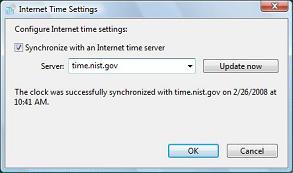
4. In the Internet Time Settings dialog box that appears, set the [x] Synchronize with an Internet time server check box.
5. In the Server: drop-down list, select a time server (the time.windows.com server usually doesn't work).
6. Click on the [Update now] button. The Internet Time Settings dialog box should display the message "The clock was successfully synchronized ...".
Your computer's internal clock is now synchronized with Internet time.

More Windows Tips:
• Create Your Own Custom Screen Saver with Windows Built-in Slideshow
• Change the Windows 7 Desktop Background
• Speed Up Windows 10 by Disabling Trivial Visual Effects
• Display Multiple Clocks in Windows 7 Taskbar
• Vista - Restore Deleted Recycle Bin
• How to Connect Two Computers
• Add the Undo Button to File Explorer in Windows 10
• Disable Media Player Network sharing
• Steps to Fix a Wet Laptop
• Block Popups in Chrome Browser