
Have you ever had difficulty finding a window because its taskbar button was grouped with other window's taskbar buttons? You can easily prevent this annoyance.
1. Right-click on the Taskbar, and in the popup menu that appears, select "Properties".
2. In the Taskbar and Start Menu Properties dialog box that appears, select the Taskbar tab if not already selected.
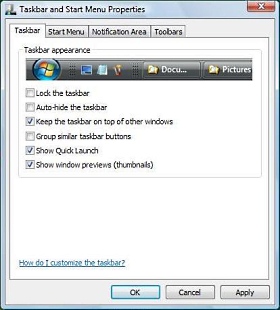
3. On the Taskbar tab, click to uncheck the [] Group similar taskbar buttons checkbox.
4. Click the [Apply] or [OK] button to apply the configuration change.
After setting this configuration, each open window will have its own taskbar button.

More Windows Tips:
• Make PDF eBooks Read Themselves Outloud
• How to Deal With a Windows Firewall Alert
• Backup Your Windows XP Activation Files
• Create Your Own Custom Taskbar Toolbar
• Disable Cutesy Effects to Speed Up Windows XP
• How To Build A Mortgage Calculator For Free in Microsoft Excel
• Disable Media Player Network sharing
• Create Your Own Custom Screen Saver with Windows Built-in Slideshow
• Windows Desktop Themes
• Create a Shortcut to the Windows 10 Print Queue