
Unfortunately, it's very common for a Windows application to misbehave. An application might fail to respond or it might start hogging your computers resources. In either case, you need to shut down the application before you can do anything productive with your computer, and you usually can't shut it down by normal means.
Task Manager is a Windows system utility that allows you to view the applications and processes running on your computer. In Task Manager, on the Applications tab, you can highlight the offending applications name, and then click on the [End Task] button to force it to shut down.
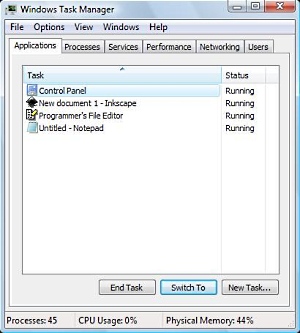
To open Task Manager you can press [Ctrl]+[Alt]+[Delete] and then, in the screen menu, select Task Manager, but I believe Windows applications misbehave so frequently that a shortcut to Task Manger would be very useful. Follow the steps below to create a shortcut to Task Manager.
1. Right-click on an open area of the desktop and, in the popup menu that appears, select New | Shortcut.
2. In the Create Shortcut dialog box that appears, click on the [Browse...] button.
3. In the Browse for Files or Folders dialog box that appears, navigate to C:\Windows\System32\taskmgr.exe (it may be helpful to make the dialog box taller). Highlight that file name and then click on the [OK] button.
4. In the Create Shortcut dialog box, click on the [Next] button, and in the "Type a name for this shortcut:" text box, type Task Manager.
5. Click on the [Finish] button.

Now, next time a Windows application misbehaves, you can just click on your shortcut to open Task Manager. Because sometimes an offending application may prevent you from accessing the desktop, you may want to drag your shortcut to the Quick Launch section (far left section) of the Taskbar.

More Windows Tips:
• Put a Shut Down Button on Your Desktop
• Headphones: earbuds, on-ear, over-ear. What's the Difference?
• How to Connect Two Computers
• Put a Help and Support Center Shortcut on Your Desktop
• Windows Desktop Themes
• Window 10 Power Management
• How to Fix a Scratched CD
• Diable Windows CD/DVD AutoPlay
• Create a Shortcut to the Windows 10 Print Queue
• How to Remove Metadata From Files in Windows 7