
Have you ever wanted to keep a picture of your computer's screen or an application's window to show to someone else? This is amazingly simple to do. On the top row of keyboard keys, near the right side, you'll find a key labeled [Print Screen] (sometimes the name is abbreviated to something like [PrntScrn] or [Prt Sc]). Simply press this key and an image of the screen will be saved to the clipboard.
• The Print Screen key doesn't actually send the image to the printer, instead it sends it to a memory storage area called the clipboard.
• To save only the image of the active window to the clipboard, hold down the [Alt] key while you press the [Print Screen] Key.
Next, open Windows Paint program (All Programs | Accessories | Paint) or your favorite image editing application and select Edit | Paste. The image of the computer's screen or the application's window will appear in the paint program window. Now you can perform any graphic editing operation on the image (e.g. crop, rotate, resize).
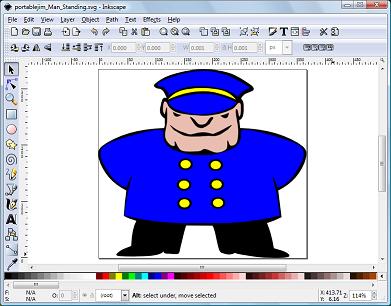
Shown above is an image of the InkScape program window acquired by pressing the
[Alt]+[Prt Sc] keys.
In the Paint program's menu, you can select File | Save As... to open the Save As... dialog box. Then give the image a name and select a file format. The default file format for the Paint program may be .bmp (Windows Bitmap), or .jpg, but most modern image editing application's will save in .png format.
jpg stands for "Joint Photographic Experts Group", the organization that developed the .jpg format. png stands for Portable Network Graphic, an image format designed to replace the older formats. You may also choose to print the screen shot by selecting File | Print in the in the Paint program's menu.

More Windows Tips:
• Google Apps vs Office 365
• Change Internet Explorer's Default Search Engine
• Save Ink When Printing
• How to Configure Windows 7 Autoplay
• Move a Window With Keyboard Arrow Keys
• Free Goodies for Your PCs
• Configure Folder Options
• Access Useful Laptop Settings in the Windows Mobility Center
• Vista - Display Multiple Clocks on Your Desktop
• Keep Laptop Running when You Close Display in Windows 7