
You're working away at your computer and you decide to send a message to a friend or family member in another city. What time is it where they are? When will they actually find the message? Windows Vista has a feature called Gadgets, and one of those gadgets is a clock.
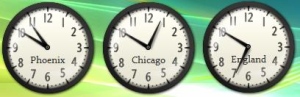
The clock is one of the gadgets that can be displayed on the Vista Side bar, but you can drag a clock from the Sidebar to the desktop. You can create as many clocks as you like, place them on desktop, and set each one to a different time zone.
1. If you don't see the Sidebar on your desktop, check the notification area of the taskbar. If the Sidebar icon is in the notification area, right-click on it's icon and, in the popup menu that appears, select Open. If there is no Sidebar icon is in the notification area, open the Sidebar by selecting Start | All Programs | Accessories and clicking on Windows Sidebar.
2. If you see a clock gadget in the Sidebar, move the mouse pointer over the Clock gadget, press the left mouse button, and drag the Clock to the desktop.
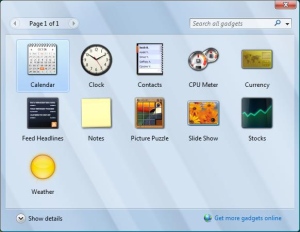
3. To create more clocks, in the menu at the top of the Sidebar, click on the "+" to open the Gadget Gallery window. In the Gadget Gallery window, move the mouse pointer over the Clock gadget, press the left mouse button, and drag the Clock to the desktop.
• You can place as many clocks as you like on the desktop and drag them to any location on the desktop.
4. When you move your mouse pointer over a clock, a tiny menu will appear on its right side. Click on the little wrench icon, and in the dialog box that pops up, enter a name for the clock and select a time zone.
• In the Clock dialog box, just below the image of the clock, you'll also notice left and right arrow buttons which allow you to select other interesting clock faces.
• You may want to close any other gadgets remaining in the sidebar because each one is a running application that uses system resources. When you move your mouse pointer over a gadget, A tiny menu will appear on its right side. In that tiny menu, click on the "x" to close the gadget.
5. When you're finished creating clocks, right-click on an empty area of the Sidebar, and in the popup menu that appears, select Close Sidebar. The Sidebar will appear as an icon in the notification area of the taskbar. To exit the sidebar completely, right-click on the icon in the notification area and in the popup menu that appears, select Exit (of course if you Exit the Sidebar, all your clocks will disappear).
6. To cause Windows to display the Sidebar when it starts, right-click on the Sidebar icon in the Notification Area. In the Popup menu that appears, select Properties. In the Windows Sidebar Properties dialog box, set the checkbox next to [x] Start Sidebar when Windows Starts.
Now, when you're working at your computer and you decide to send a message to a friend or family member in another city, you can glance at your clocks and see what time is it where they are.

More Windows Tips:
• How to Restore Files from File History in Windows 10
• How to Fully Customize your Desktop
• Disable Windows 7 Automatic Resizing and Docking
• Turn Off the User Account Control
• Windows Mouse Dead? - How to Get Around Windows Without the Rodent
• Block Popups in Chrome Browser
• Create a Desktop Shortcut to Control Panel
• Use ReadyBoost to Improve PC performance
• How to Remove Metadata From Files in Windows 7
• Disable Media Player Network sharing