
One of the most popular things for people to do when they get a new PC is to get rid of the PC manufacture's, or Microsoft's desktop background. If you're a heavy desktop user, in other words your desktop is always crowded with icons, you might want to change to a solid color background. An image on your desktop background might make it too busy to easily locate icons.
If you're not a heavy desktop user, in other words you usually use the Start menu to access documents and applications, then you might want to change to a different desktop background image. Windows provides dozens of beautiful images that you can select as replacement for your current image. Or you can choose an image that you found on the Internet or shot with your own digital camera. If you want to use an image from the Internet or your own image, place the image somewhere you can locate it easily, like in your Pictures Library folder.
• You can use an image in the .bmp, .gif, .jpg, .jpg, or .png file format.
1. right-click on a blank area of the desktop and, in the popup menu that appears, choose Personalize.
2. In the "Change the Visuals and Sounds on Your Computer" window that appears, click on "Desktop Background" (near the bottom of the window).
3. On the "Choose your desktop background" screen, choose from the drop-down list: Windows Desktop Backgrounds, Pictures Library, or Solid Colors.
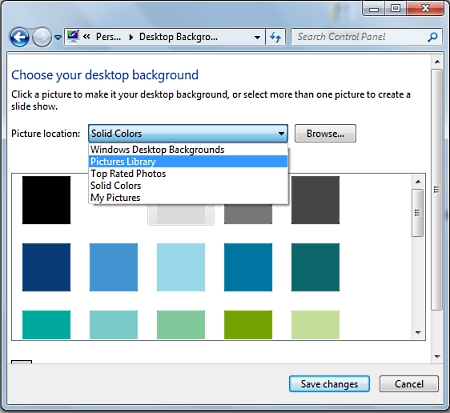
4. If you choose Solid Colors, click on a solid colored square in the list. If you choose Windows Desktop Backgrounds or Pictures Library, click on an image in the list. You can also click on the [Browse...] button and select an image from anywhere on your PC.
If you choose an image, the image may not be exactly same dimensions as your computer's screen. In that case, you'll have to choose a method for Windows to display the image form the Picture position: drop-down list.
Fill - Resizes the image to fill the entire screen without changing the image's aspect ratio. This may cause part of the image to lie outside the visual area.
Fit - Resizes the image to fit either the width of height of the entire screen without changing the image's aspect ratio and without letting part of the image lie outside the visual area. Before fitting an image choose a solid color background to fill any areas that lie outside the image.
Stretch - Stretches the image to fill the entire screen by changing the image's aspect ratio.
Tile - Fills the screen without resizing or stretching the image by tiling it across the background.
Center - Centers the image on the screen without resizing or stretching the image. Before centering an image choose a solid color background to fill any areas that lie outside the image.
You can actually turn the desktop background into a slide show by holding down the [Ctrl] button while you several images. Then in the "Change picture every:" drop-down list, choose the time between images.
5. Click on the [Save Changes] to activate your new desktop background.
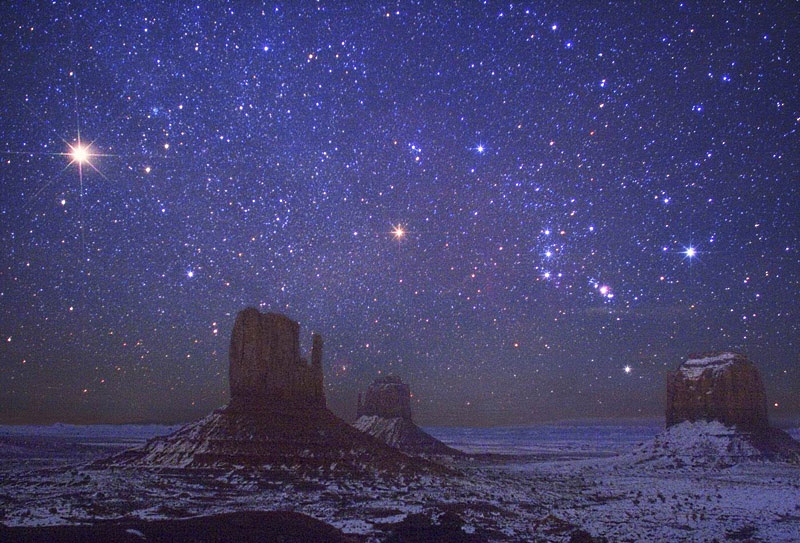
A breath-taking night-time picture of Monument Valley
taken by Wally Pacholka. Find this and other pictures
for your Windows Desktop background at
Astronomy Picture of the Day

More Windows Tips:
• Windows 10 Keyboard Accessibility Settings
• Customize the Quick Launch Toolbar
• Single-click to Open Applications and Files
• How to Add or Remove Items from Send to Menu
• Move a Window With Keyboard Arrow Keys
• Save Ink When Printing
• VLC Free Open-Source Media Player
• Uninstall Windows Live Messenger From Windows 7
• Create a Shortcut to the Windows 10 Print Queue
• How to change a Folder's Icon