
If you need to type the same character many times in a row, wouldn't it be convenient if, rather than repeatedly pressing the same key, you could just hold the key down and it would automatically repeat the character? That's exactly what a typomatic key does.
A typomatic keyboard has has two properties; the repeat delay, the time between when the key is first pressed and when the character begins repeating, and the repeat rate, the rate at which the characters are repeated.
If the repeat delay is too short, it may cause typos. If the repeat rate is too fast, it may be difficult to control. If either the repeat delay is too long, or the repeat rate too slow, it can slow your typing speed. Fortunately you can accurately set both the repeat delay and the repeat rate.
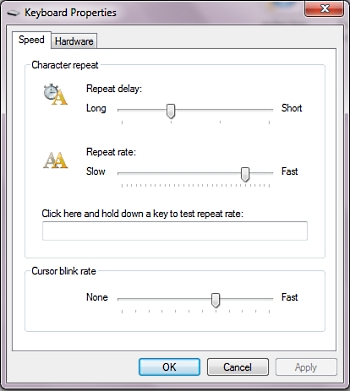
To set the typomatic properties, open Control Panel and in the upper-left corner of Control Panel, in the View By: drop down-list, select Large icons. Then click on the icon labeled Keyboard. In the Keyboard Properties dialog box that appears, on the Speed tab, click in the text box and then press a character key on the keyboard. With the mouse pointer, drag the Repeat delay and Repeat rate slider controls until the keyboard reacts with the desired speeds. Then click on the [OK] button.

More Windows Tips:
• How to Restore Files from File History in Windows 10
• Make Your USB Drive Work Faster
• Where Did My Recycle Bin Go?
• Delete Windows App Usage History
• Speed Up Windows 10 by Disabling Trivial Visual Effects
• How to Free Some Hard Drive Space
• Disable Windows 7 Start Menu Display of Most Recently Opened Files
• Display Control Panel Utilities in Windows 7 Start Menu
• Change Your PC's Name
• Disable Media Player Network sharing