
Gadgets are little applications that you can place on your PC desktop. Some of them are gadgets that get information from your Internet connection, like stock quotes, news headlines, or whether information. Other gadgets get information from your computer, like the time, CPU utilization, or memory utilization. Many are just games.
Some gadgets cost money, but most are free. Windows 7 comes with a small collection of gadgets, but there are thousands more gadgets online at Microsoft's website. To add a gadgets to your Windows 7 desktop:
1. Right-click in empty area of the desktop and, in the popup menu that appears, select "Gadgets".
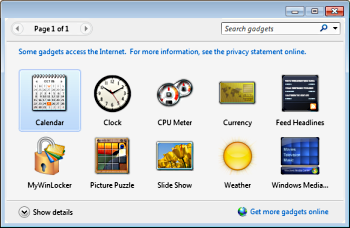
2. In the dialog box that appears, you can see various gadgets; Calendar, Clock, CPU Meter, Currency Converter, Feed Headlines, etc. Select a Gadget and drag it to your desktop. For this example, select the Feed Headlines Gadget.
3. Some gadgets, like the Feed Headlines gadget can be configured. To configure the Feed Headlines gadget, move your mouse pointer over the gadget. A tiny menu appears to the upper-right of the gadget. In the menu, click on the wrench icon to open the gadget's settings dialog box. In this case you can select a feed to display. unfortunately you can't enter your own feed, you have to select one from the list.
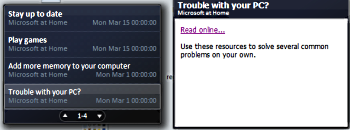
The list of feed items automatically scrolls. If you click on one of the feeds, a little window with a link appears next to the gadget. click on the link and you will be taken to the article related to the link.
4. To remove a gadget from the desktop, move your mouse pointer over the gadget to open the menu, then click on small "x" at the top of the menu.
If the small collection of gadgets that Windows 7 comes with are not enough, open the Gadgets dialog box and click on the "Get more gadgets online" link in the lower-right corner of the dialog box. There are thousands more gadgets you can download from Microsoft's website. why not try the "Daily Dilbert" gadget?

More Windows Tips:
• Windows 10 Shortcut to Turn Laptop Camera On or Off
• How to Use Windows 7 Built-in Speech Recognition
• How To Build A Mortgage Calculator For Free in Microsoft Excel
• How to Create a Microsoft Excel Database
• Create a Shortcut to the Windows 10 Print Queue
• Remove Windows Components You Don't Need
• Increase Windows 7 Notifiction Display Time
• Display Multiple Clocks in Windows 7 Taskbar
• Change the Windows 7 Desktop Background
• Capture the Computer's Screen With the Print Screen Key