By default a Windows 7 notification message appears for 5 seconds and then slowly fades away. It requires more than 5 seconds for me to fetch a cup of coffee and return to my PC. I may well have missed a notification message while I was gone. Fortunately it's very easy to increase the notification display time.
Welcome to Bucaro TecHelp!

Welcome to Bucaro TecHelp!
Maintain Your Computer and Use it More Effectively
to Design a Web Site and Make Money on the Web

About Bucaro TecHelp About BTH User Agreement User Agreement Privacy Policy Privacy Site Map Site Map Contact Bucaro TecHelp Contact Advertise on Bucaro TecHelp Advertise Here RSS News Feeds News Feeds


Computer Repair with Diagnostic Flowcharts

Troubleshoot PC Hardware Problems With Flowcharts

This manual for troubleshooting PC hardware problems creates a visual expert system for diagnosing component failure and identifying conflicts.

The seventeen diagnostic flowcharts at the core of this book are intended for the intermediate to advanced hobbyist, or the beginning technician.

Click Here

Increase Windows 7 Notifiction Display Time

You've undoubtedly seen Windows 7 notification balloons displayed in taskbar area. By default a notification message appears for 5 seconds and then slowly fades away. Unfortunately it requires more than 5 seconds for me to fetch a cup of coffee and return to my PC. I may well have missed a notification message while I was gone.
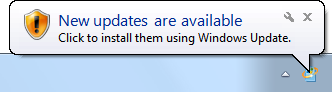
Windows 7 notification balloon

If you have the same concern, you'll be happy to know that you can easily increase the notification display time.

In Control Panel select the Ease of Access group. In the Ease of Access group, click on the "Ease of Access Center" link. At the bottom of the Ease of Access Center settings page click on the "Make it easier to focus on tasks" link.
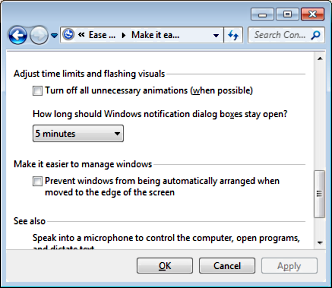
Notifiction display time

At the bottom of the Make it easier to focus on tasks page, in the Adjust time limits and flashing visuals section, in the "How long should Windows notification dialog boxes stay open" drop-down list, select a time interval up to 5 minutes. Click on the [OK] button.

Windows 7 notifications will now be displayed for the amount of time you have chosen. It's safe to go grab that cup of coffee.

More Windows Tips:
• Disable "Hard Disk Turn Off" to Speed Up Windows XP
• Add a Folder to the Windows 7 Taskbar
• How to Free Some Hard Drive Space
• Disable Media Player Network sharing
• Increase Windows 7 Notifiction Display Time
• Disable Cutesy Effects to Speed Up Windows XP
• Delete Does Not Erase a File
• How to Remove a DVD or CD that's Stuck in the Drive
• Desktop Shortcuts Give Quick Access to Applications and Folders
• How to Configure Windows 7 Autoplay


RSS Feed RSS Feed

Google Reader or Homepage
Add to My Yahoo!

Add to My AOL
Add to Technorati Favorites!

Computer Sections


TigerDirect
[Site User Agreement] [Advertise on This site] [Search This Site] [Contact Form]
Copyright©2001-2011 Bucaro TecHelp 13771 N Fountain Hills Blvd Suite 114-248 Fountain Hills, AZ 85268