
I found an interesting article "Make Video Calls With Windows Live Messenger". I thought this might be an interesting thing to try, and very useful if it worked. So I opened Windows Live Messenger on My Windows 7 PC and attempted to use it, however it required me to get an ID. I was taken to a website to sign up for an ID, and next to the sign up button was the message (paraphrased) "You Agree to Accept SPAM". NO WAY! So I closed the webpage and Windows Live Messenger.
After that every time I started my computer, Windows Live Messenger opened on the screen. In my attempt to get rid of Windows Live Messenger, I learned that it's part of Windows Live Essentials, which includes other Windows Live applications such as Photo Gallery and Movie Maker. Windows Live Essentials has an uninstaller which lets you remove individual components of Windows Live Essentials. To uninstall Windows Live Messenger:
1. In Control Panel, click on the Uninstall a program link.
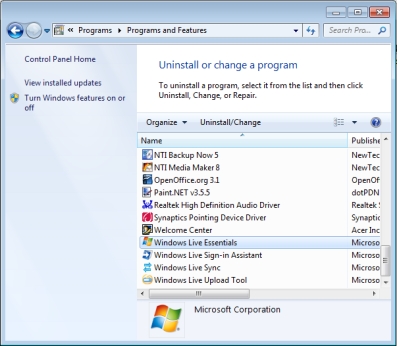
2. In the list of programs that appears, scroll down and highlight Windows Live Essentials, then on the toolbar at the top of the list, click on Uninstall⁄Change.
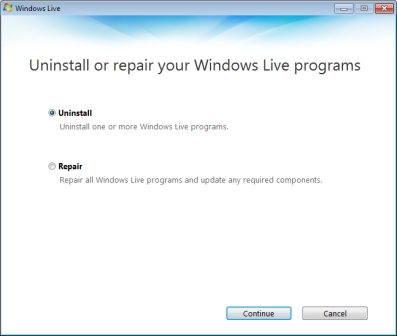
3. A window appears with the message "Uninstall or repair your Windows Live programs". Make sure the () Uninstall radio button is set, then click on the [Continue] button.
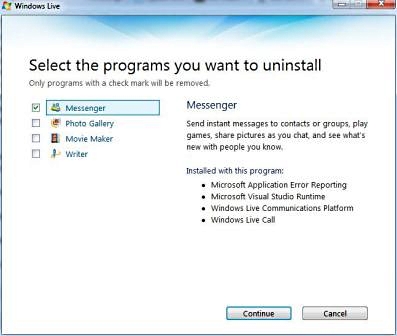
4. A window appears with the message "Select the programs you want to uninstall". Set the checkbox next to Messenger, then click on the [Continue] button.
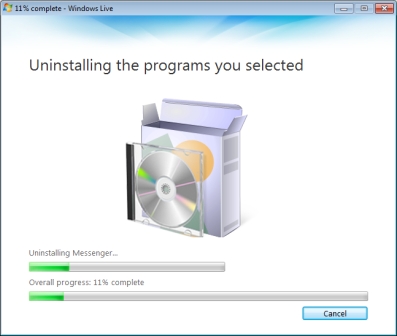
5. A window displaying progress bars will appear.
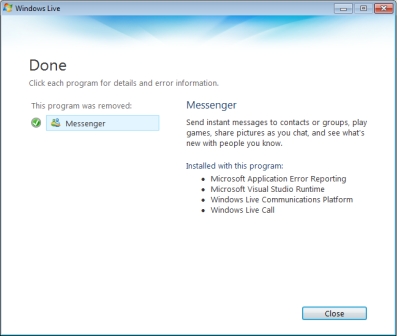
No more problems with Windows Live Messenger.

More Windows Tips:
• My Favorite Windows 7 Tips and Tricks
• Google Apps vs Office 365
• Capture the Computer's Screen With the Print Screen Key
• Know Your Keyboard Shortcuts
• Free Goodies for Your PCs
• Configure the Start Menu
• Put a Shut Down Button on Your Desktop
• How to Remove Metadata From Files in Windows 7
• Customize the Quick Launch Toolbar
• Single-click to Open Applications and Files