
If you're a writer, or do a lot of keyboard typing (like I do), you might be able so save yourself a lot of work by using Windows 7's built-in speech recognition. Speech recognition is one of Windows 7's Ease of Access features designed for the physically impaired, but there's no reason a not-physically impaired individual can't take advantage of it.
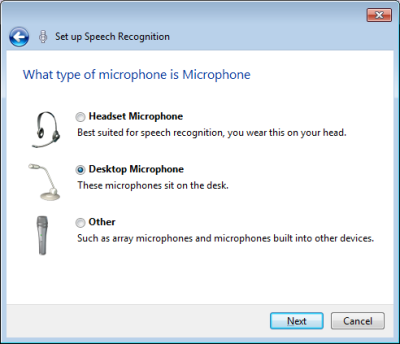
The first thing you'll need in order to use speech recognition is a microphone. Plug your microphone in the pink microphone jack on your computer. Then, in Control Panel, in the Ease of Access group, under Speech Recognition, click on the Set up a microphone link to tell Windows which type of microphone you will be using.
Next, click on the Start speech recognition link. The first time you use it, you'll be required to run through the Speech Recognition Wizard, which will ask you a few questions like:
"You can improve the computer's ability to recognize spoken words by allowing the computer to review documents and e-mail in your search index. The computer will learn words and phrases to better understand you when you speak." Since I don't have the word "STUPID" stamped on my forehead, I set the Disable document review radio button.
Another thing you are asked is to configure if you want to run speech recognition at startup. Unless you're a professional transcriptionist, I would say leave this checkbox unchecked. You'll also be asked to read a sample line aloud to test the setup.
The next time you click on the Start speech recognition link, the Speech Recognition control will appear at the top of your screen. Open a file, for example a Notepad file, and click inside to get an active insertion point. Then begin speaking.
You can control the Speech Recognition application with verbal commands, for example to start a new line you can say "NEW PARAGRAPH", or you can augment verbal commands with the keyboard (press the [Enter] key). On the Control Panel Speech Recognition page, there's a link to open the Speech Reference Card, which lists all the verbal commands.
One thing that fakes me out about speech recognition is that the text is greatly delayed relative to my voice. I keep stopping to see if this thing is working. In fact I've got to the point where I speak a sentence, wait for it to show up in the document, and then speak another sentence. I think you're supposed to just keep speaking and assume the speech recognition program will catch up.
One thing you'll notice about speech recognition is that it screws up a lot, sometimes laughingly. They say you have to train the program before it starts working properly. Here's some rules to get better results from speech recognition:
1. Use a high-quality microphone.
2. speak clearly, deliberately and enunciate clearly.
3. no coughing, sneezing, or throat clearing.
4. no background music or other background noise.
Because of my involvement with medical transcription, I'm very familiar with speech recognition applications. I have never seen one that didn't generate many errors - not even the high-priced programs. I think what they really mean when they say "you have to train the program" is that you have to train yourself to be compatible with the program.
Have you ever watched one of those TV shows that uses speech recognition to generate closed caption? I'm sure they use a very expensive program. You can get some good laughs. The question is, will speech recognition save you some work?
First you need a very quiet work environment. Then, you have to work very hard to speak clearly, deliberately and enunciate clearly. You'll still get many errors that you have to work at fixing. So, if your a half-decent typist, speech recognition is not going to save you any work. You might break even at best.
Will computers ever advance to the point where speech recognition beats a good typist? Human language is just too complicated. Sometimes humans can barely understand what humans are saying, so how can a computer be expected to do it? I doubt that computers will ever produce acceptable speech recognition, and that's a good thing because otherwise thousands of transcriptionists would lose their jobs.
Now that I have discouraged you, I would admit that watching the speech recognition program type what I'm saying, and get it right, is very amazing. I would advise you to give it a try. Maybe you can successfully "train the program" so that it saves you lots of work.
