.nav { width:100%; display:inline-block; background:#009000; font-family:verdana; } .nav-list { margin: 0; padding: 0; display:inline; list-style:none; } .nav-item { display:inline; float:left; border-style:double; border-width:4px; background-color:#d1ffd7; } .nav-item a { display:block; padding:10px; color:black; text-decoration:none; } .nav-item a:hover { background:#66CC99; } .siteinfo { width:100%; display:inline-block; background:#009000; font-family:verdana; } .siteinfo-list { margin: 0; padding: 0; display:inline; list-style: none; } .siteinfo-item { display:inline; float:left; } .siteinfo-item a { display:block; padding:10px; color:white; } .siteinfo-item a:hover { background:#66CC99; } header { padding-left:6px; padding-right:6px; border-style:solid; border-width:2px; font-family:verdana; font-size:12px; } article { -moz-column-rule: 1px solid black; -webkit-column-rule: 1px solid black; column-rule: 1px solid black; } /* for devices 40em max width */ @media screen and (max-width:40em) { article { -moz-column-count: 1; -webkit-column-count: 1; column-count: 1; } } /* for devices 41-60em width */ @media screen and (min-width:41em) and (max-width:60em) { article { -moz-column-count: 2; -webkit-column-count: 2; column-count: 2; } } /* for devices greater than 61em width */ @media screen and (min-width:61em) { article { -moz-column-count: 3; -webkit-column-count: 3; column-count: 3; } } footer { padding:4px; border-style:solid; border-width:2px; font-family:verdana; } p, ol { font-family:verdana; }

Menu
Delete Windows App Usage History

Privacy is a big concern to today's computer users. One problem is that Windows records what apps you spend your time using. There might be certain individuals or organizations that want to get hold of this information. Here's how to delete this information.

1. In the task bar search box, type task manager.

2. In the search results menu that appears, right-click on Task Manager and in the menu that appears, select "Run as administrator".
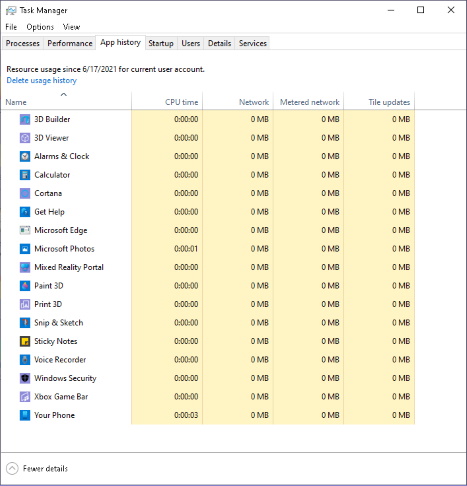
Task Manager App Usage History

3. In the Task Manager window that appears, select the [App history] tab.

4. Near the top of the [App history] tab click on link "Delete usage history" Usage statistics for all apps goes to zero.

More Windows Tips:
• Desktop Shortcuts Give Quick Access to Applications and Folders
• Google Apps vs Microsoft Office 365: Which is Best for Your Business?
• Windows 7 - Rename a Group of Files Simultaneously
• Customize the Quick Launch Toolbar
• Change Vista's Start Menu Shutdown Option
• Disable Windows 7 Start Menu Display of Most Recently Opened Files
• Change Internet Explorer's Default Search Engine
• Change the Windows 7 Desktop Background
• Configuring the Windows 7 Taskbar Notification Area
• Add a Folder to the Windows 7 Taskbar