
The most important part of installing memory is to make sure you are using the correct type of memory for your motherboard. Its important to study the manual that came with your motherboard to determine exactly what type and speed of memory is required.
It is also important to avoid creating an Electro-static discharge (ESD) while handling the memory module. ESD is a spark of static electricity that can damage the memory module. The proper way to handle static sensitive eletronic components is to use a grounded wrist strap. If you don't have a wrist strap, you can discharge any static electricity from your body to ground by placing one hand on an unpained part of the metal chasis while you work.
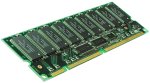
If your motherboard is an older design, it may use Synchronous Dynmaic Random Access Memory (SDRAM) in a 168-pin Dual In-line Memory Module (DIMM). SDRAM comes in two speeds, 100 MHz (PC100) and 133 MHz (PC133). It comes in 3.3 volt and 5.0 volt versions, with Error Checking and Correction (ECC) or non-ECC.
New motherboards usually use Double Data Rate SDRAM (DDR SDRAM) packaged in a 168-pin DIMM. DDR SDRAM comes in two speeds, 266 MHz (PC2100) and 333 MHz (PC2700). If your motherboard has more than one slot, and you have only one memory module, you might be required to install a single DIMM in slot 1.
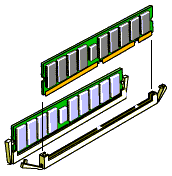
To install a DIMM, note how the module is keyed. It can be plugged in only one way. Push open the ejector tabs on both ends of the memory socket. Firmly press the module into the socket until the ejector tabs snap into locked position.
Some Intel motherboards may use RAMBUS packaged in a 184-pin RIMM. RAMBUS comes in speeds from 300 MNhz (PC300) to 1.066 MHz (PC10660). It may be ECC or non-ECC. There are two connectors on the motherboard, each must contain either a RIMM or a C-RIMM. A C-RIMM (continuity RIMM) does not contain memory, it is a module that provides a path pass-through for the signal.

More Maintain and Upgrade Your PC Articles:
• Wireless Router Setup
• Free Download Patch My PC Checks for Available Patches
• Removing and Installing the Hard Drive
• Using Your PC as a Home Theater
• Satellite Internet Service Basics
• Four Tips to Finding Quality PC Cleaner Software
• How to Set Up a Wireless Printer Connection
• Hacking Windows Vista
• Printing Troubleshooting Guide
• Installing A Power Supply