
Tweak UI is one of a group of utilities called "PowerToys" that you can download from Microsoft's web site for free. TweakUI makes it easy to configure several Windows Interface options that are difficult to find or are not available in Control Panel.
Download from the 147 KB file TweakUiPowertoySetup.exe from Microsoft Windows XP Downloads
To install Tweak UI, double-click on downloaded file's name to start the setup program. The setup program puts TweakUI.exe in the C:\WINDOWS\system32 folder and puts an item in the Start menu. To run TweakUI, select Start | Programs | Powertoys for Windows XP | Tweak UI.
• PowerToys are not supported by Microsoft.
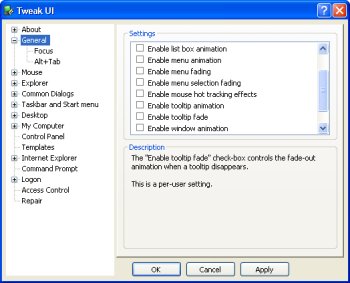
Animation, fading, and tracking are all user interface trivia that slow your system down. If you're not impressed by trivia, and prefer performance instead, in the General branch of Tweak UI you can uncheck boxes to disable all animation, fading, and tracking.
In the Explorer | Thumbnails branch, you can configure the size of thumbnails. If you have a lot of graphics files in your folders and you use the View | Thumbnails folders option, you might want to change the size of thumbnails from the default size of 96 pixels to a higher value, for example 128 pixels.
In the Taskbar and Start menu branch you can configure which applications appear in the Most Frequently Used section of the Start menu.
In the Desktop branch you can uncheck boxes to remove unneccessary desktop icons, for example if your computer is not on a network you don't need the My Network Places icon.
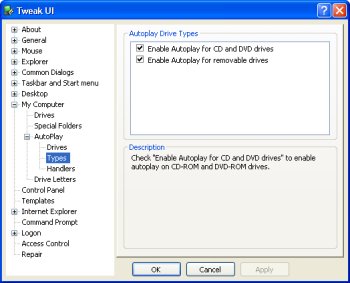
I generally use my computer's drives for storage, not to play music or video, for that reason it's very annoying to me when Windows automatically starts scanning through a storage device for music or video files to open. In the My Computer | Autoplay branch you can uncheck boxes to disable this Autoplay.
Click on [Apply] button to apply a new setting. when finished configuring all settings, click on [OK] button to close TweakUI.
You'll find many more configuration options in TweakUI, and if your operating system is the Pro version of Windows XP, you'll find even more options, for example you'll find an About | Policy branch where you can set group policy options.

More Maintain and Upgrade Your PC Articles:
• FREE Ebook - How to Configure and Maintain Your PC
• How To Properly Install A New Motherboard
• Give New Life to Your PC Without Upgrading
• How to Create an Emergency Repair Disk
• How to Backup Your Hard Drive
• Avoid Cancer by Using USB Wired Keyboard and Mouse
• How to REALLY Backup the Windows Registry
• How to Update Your Computer's BIOS
• An Uninterruptible Power Supply Can Save Your PC
• Using Your PC as a Home Theater