
Windows Defender is a program that helps protect your computer from spyware and other unwanted software. Windows Defender scans your computer for malicious software and provides alerts and default actions such as putting suspicious software into a quarantine area where it can't run. It also uses real-time protection, which detects a malicious or unknown programs attempting to install themselves or run on your computer or attempting to change important Windows settings.
Windows Defender is included with all versions of the Windows Vista operating system and is available to download for Windows XP Service Pack 2 or later, or Windows Server 2003 Service Pack 1 or later.
• If you have an antivirus application like AcAfee, Symantic, or Trend Micro installed on your PC, it may have disabled Windows Defender.
The Three Kinds of Programs
To Windows Defender, there are three kinds of programs:
• Legitimate programs. Windows Defender gives no alert for known legitimate programs, it just lets them run normally.
• Unknown programs. If, in the Options menu under Notification Options, you set the checkbox next to "Software that has not yet been classified for risks", Windows Defender will alert you about programs that it can't identify as being legitimate or being spyware.
• Known malicious programs. Windows Defender does not allow known malicious programs to run. Instead, it generates an alert popup message that asks you if you want to allow the questionable software to execute, or if you want to disable or remove it.
Windows Defender informs you of the alert level of the questionable software, If the alert level is "Severe", "High", or "Medium", you should let Windows Defender remove it. If the alert level is low, read the message details. If you don't recognize the software, tell Windows defender to disable it or remove it.
If the alert level is "Not yet classified", you should search with the program's name in Google to decide whether to let it run.
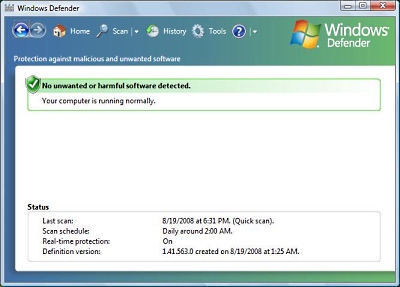
You can access Windows Defender by selecting Control Panel | Security | Windows Defender. Menu selections in Windows Defender are: Home, Scan, History, and Tools.
Scan
Click on the Scan menu item to immediately start a scan of your PC for spyware. It will perform either a Quick Scan or a Full Scan, depending upon the Default action set in the Options section of the Tools menu.
• A Quick Scan scans only the parts of the PC most likely to be infected by spyware, as well as any running programs.
• A Full Scan scans every file on all of your hard disks, as well as any running programs.
The down arrow just to the right of the Scan menu lets you choose the specific type of scan. When a scan is in progress, the [Stop Scan] button appears. Click on the [Stop Scan] button to immediately stop the scan.
History
The History menu displays a log of all the actions Windows Defender has taken. For each program it's taken action on, it lists the name, alert level, action it took, the date, and whether the action was successful. clicking on a listing provides more details about it.
Tools
The Tools menu lets you set options for controlling how Windows Defender scans for spyware and what actions it takes when it finds a suspicious program. It also lets you view and control allowed items and quarantined items, and provides you with a powerful tool, Software Explorer that provides detailed information about the programs running on your computer.
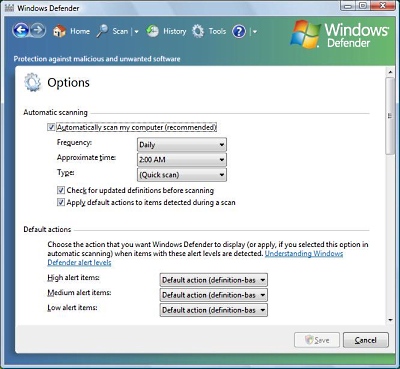
• Options
• Automatic scanning. This section lets you control when Windows Defender performs automatic scans. Here you can set the schedule and whether you want to perform a quick scan or a full scan. You can also choose whether you want Windows Defender to check for updates before each scan and whether to apply default actions to detected items.
• Default actions. This section lets you set what Windows Defender does when it detects a malicious or unknown program. For each alert level, you can set a differnt action based on the definition for the program, ignore the threat, or remove the program.
• Real-time protection options. This section lets you set what Defender does when it detects a malicious or unknown program attempting to install itself, or run on your computer, or if a program attempts to change important Windows settings.
• Advanced options. This section lets you set several advanced options including whether you want Windows Defender to scan archived files and folders, whether to use heuristics to detect potentially harmful or unwanted behavior by software (in other words to use strategies other than relying on program signatures), and to prevent Windows Defender from repeatedly flagging files that you know to be safe.
• Administrator options. This section lets you turn Windows Defender off or on, and to set whether non-administrative users can run scans and view potentially sensitive information such as the Windows Defender history.
• Quarantined items
When Windows Defender find spyware, it puts into a quarantine area where it can't run. If you decide you want to let a Quarantined program run, select the program's name in the Quarantined items list and click on the [Remove] button in the lower-right corner of the Quarantined items window. If you decide that you made a mistake by letting a previously Quarantined program run, select the program's name and click on the [Restore] button.
• Allowed items
An allowed item is a list of programs for which Windows Defender generated an alert, but you chose to allow it to run. Windows Defender will not generated an alert when a program on the allowed items list runs. If you decide you want Windows Defender to generated an alert for a particular program on the list, select the program's name and click on the [Remove from list] button in the lower-right corner of the Allowed items window.
• Software Explorer
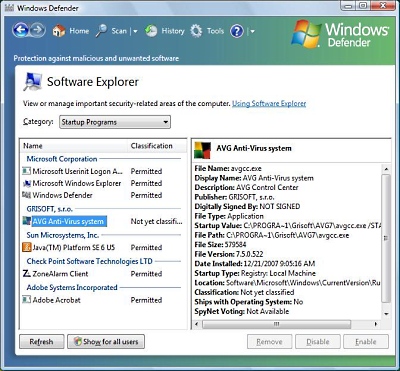
Software Explorer is a tool that provides detailed information about the programs running on your computer. Software Explorer breaks programs down into four categories which you can choose from the drop down list.
• Startup Programs. Programs that start when Windows starts. You can use Software Explorer to disable a program from starting with Windows.
• Currently Running Programs. Programs that are running in the current session. This includes any startup programs that are still running.
• Network Connected Programs. Programs that can connect to the network or the Internet.
• Winsock Service Providers. Programs that perform low-level networking functions for programs and services.
When you select a program in a list, Windows Defender shows you a wealth of information about that program so that you might be able to determine whether it's a threat. In the lower-right corner of the Software Explorer window are buttons that allow you to open Task Manager or end the currently displayed process. Be careful when ending a running process because that can have unexpected results, such as file corruption. Instead, try to close the program the normal way.
• Microsoft Spynet
When Windows Defender detects software that has not yet been classified as legitimate or malicious, it sends information about the software to it's online community, Spynet, to learn how members of Spynet decided to resond to it. It uses that information to classify the software. By default, everyone with a registered copy of Vista is a member of Spynet's basic service.

More Maintain and Upgrade Your PC Articles:
• The Truth About Power Supplies
• Printers - A Practical Buyers Guide
• Give New Life to Your PC Without Upgrading
• Printer Cartridge Price Fixing
• Installing an Internal Hard Drive
• How to Create an Emergency Repair Disk
• Reloading Windows XP
• Installing Memory
• How to Set Up a Wireless Printer Connection
• Free Registry Cleaner to Speed Up Windows