
Note, always make sure you are grounded, and watch where your hands are when you are inside of your computer.
These instructions assume you have Windows XP. If you don't have this system, don't worry, it still should be similar, especially for Vista or Windows 2000.
I like to uninstall the old graphics card before I install the new one. The process for this is simple. Left click on the "Start" menu. Right click on "My computer," then from the drop down menu, choose properties. Click on the "hardware" tab from the small window that is now opened. Now, choose the "Device Manager" button. You will now have a "Device Manager" window. Click on the "+" next to "Display adapters."
This will now list the adapters. Normally you will have just one. Sometimes you will see two or more listed, so you may have to repeat the next step twice or more. It depends on the card you have, or if you have multiple cards. Now you will right click on the adapter(s) listed, choose "uninstall." Click "ok." It should ask you to restart. Click "cancel." You will be inserting a new card, so you don't want to restart, you want to fully power down the machine. Do that now. Make sure you choose "shut down."
Once your machine is off, make sure you at least unplug power to the computer for your own safety, and the safety of the machine. It may be to your advantage to just unplug everything so you can take your computer to a convenient place to perform the operation.
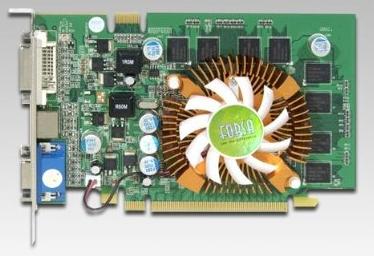
NVidia GeForce 6600 512MB PCI Express Video Card
It's time to open the computer case. Use your observation skills and observe the case. In many instances there will be screws on the back that hold the side panel on. Some DELLs will have buttons on the top and bottom to release the case. If you are confused, try to look up your model number on the website of your computer manufacturer, and you may be able to find instructions there. Open the computer case.
Once you are inside, locate the PCI, PCIe, or AGP slots. Or you are going to locate the old graphics card. Touch a piece of metal of the computer case to release any static charge, so you don't damage anything inside. You can purchase a static releasing wrist band that connects to the case if you want to be extra careful. Using this wrist band would be the recommended and safest approach. PCI slots are usually identical and arranged side by side. Many motherboards have two or more. The old graphics card will likely be the card that the computer monitor was connected to.
You will now remove the old graphics card, if you had one. Your monitor may have been connected to the integrated graphics card. You won't be removing this one. Now, let's remove the old card. You may need a screwdriver. DELL machines and others, you may not need one. DELLs sometimes have a hinged retainer holding in the computer cards. Take out the screw or open the retainer that holds the graphics card. Grab each top side of the card and pull straight up to pull out the card. Watch out not to pull on the resistors or other electronics parts that are sticking out of the card. Remember to stay grounded.
Take the new card and place it in the slot you just took the old card out of, that is, if this card is made for the same type of slot. If not, you simply locate the slot. If you are unsure, you can easily locate the slot by observing the card and the slots and carefully match them up with the right slot.
Ok, so carefully line the card up and firmly, but not forcefully push the card straight down into the slot. Push from the top of the card. Again, don't force it. If you need force, look at your card and the slot and make sure you have the right card for the slot. Screw the card back in or put the retainer back. Hook up any extra power connections the card requires. The manual of the card should let you know.
Now, put the case back together. Plug everything back into the computer, and turn the computer back on.
Perhaps your Operating System will recognize the card and install the correct driver automatically. Many times it will not. You should have a driver CD, insert it, follow the instructions and your card should be ready to use. You may also try and find a newer driver from the chip manufacturer site, like Nvidia.com, or ATI.com. Again, follow instructions and download and install the driver.
I would be glad to answer your questions, or provide support. See below.
I am a long time computer fan, since back in the years of the Atari 2600, Color Computer, and Commodore 64. I have spent years working with computers. I spent a significant amount of time working as an IT tech at a local university, Virginia Tech. I have learned much on my own as well. I started a computer repair and help business. I came up with the name Computer Mechanic. I think that fits well. If you would like additional help, you can visit me my web site, [serviceyourcomputer.com This site can't be reached]

More Maintain and Upgrade Your PC Articles:
• Give New Life to Your PC Without Upgrading
• Do We Really Need Windows Vista?
• Hacking Windows Vista
• Video - How To Refill Your Laser Printer Toner Cartridge
• Free TweakUI User Interface Configuration Utility
• Printer Cartridge Price Fixing
• A Simple Guide To Installing Laptop Memory
• A Guide to Cleaning Your Mouse
• How and When to Upgrade Your Sound Card
• How to Backup Your Hard Drive