
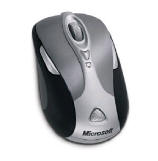
Have you noticed your mouse gets a bit erratic or unresponsive? The problem may simply be grit and grime - plain or dirt! Both optical and mechanical mice suffer from the accumulation of dirt and oils from our hands and dust on the mousing surface. Here are the directions you need to give your mouse a good bath!
Optical Mouse
 An optical mouse uses a light-emitting diode (LED) and an optical sensor to
navigate the pointer. If the pointer on the screen does not move smoothly
with the optical mouse, you might need to clean the mouse. To clean the
optical mouse, follow these simple steps:
An optical mouse uses a light-emitting diode (LED) and an optical sensor to
navigate the pointer. If the pointer on the screen does not move smoothly
with the optical mouse, you might need to clean the mouse. To clean the
optical mouse, follow these simple steps:
1. Turn off your computer.
2. Disconnect the mouse cable from the computer.
3. Turn the mouse upside down to look at the lens.
• If there is a smudge on the lens, gently clean the area with a plain cotton-tipped swab.
• If there is debris in the lens, gently blow the debris away from the area.
4. Check the surface on which you are using the mouse. If you have a very intricate picture or pattern beneath the mouse it may be difficult for the digital signal processor (DSP) to determine changes in the mouse position. Also, Mouse Pads get dirty and need to be replaced - it is recommended that you replace your mouse pad every year.
5. Reconnect the mouse cable to the computer.
6. Turn your computer back on.
Mechanical Mouse
 The non-optical mouse uses a ball to navigate the pointer. To clean a non-optical mouse:
To clean a mouse with a ball, follow these steps:
1. Turn off your computer.
2. Disconnect the mouse cable from the computer.
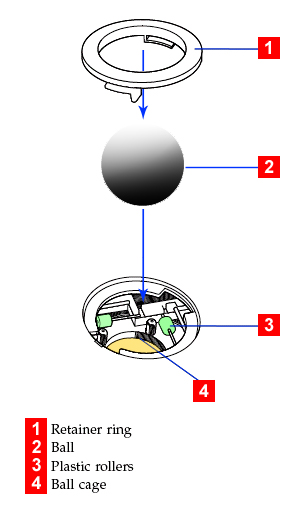 3. Turn the mouse upside down. Twist the retainer ring [1] to the unlocked
position to remove the ball.
3. Turn the mouse upside down. Twist the retainer ring [1] to the unlocked
position to remove the ball.
4. Place your hand over the retainer ring and ball [2], and then turn the mouse right-side up, so that the retainer ring and ball fall out into your hand.
5. Wash the ball in warm, soapy water then dry it with a clean cloth.
6. Blow air carefully into the ball cage [4] to dislodge dust and lint.
7. Look for a build up of dirt on the plastic rollers [3] inside the ball cage. This build up usually appears as a stripe running across the middle of the rollers.
8. If the rollers are dirty, clean them by using a cotton swab soaked in isopropyl (rubbing) alcohol. Turn the rollers with your finger and continue swabbing them until all the dirt is removed. Be sure the rollers are still centered in their channels after you clean them.
9. Remove any fibers from the swab that might be remaining on the rollers.
10. Replace the ball and the retainer ring. Twist the retainer ring to the locked position.
11. Reconnect the mouse cable to the computer.
12. Turn your computer back on.
Scrollwheels
You may also need to clean your mouse's thumbwheel. The best way is clean them by using a cotton swab soaked in isopropyl (rubbing) alcohol.
Trackballs
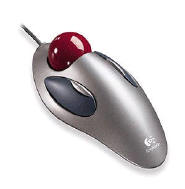 Mechanically a trackball is very similar to a ball mechanism mouse. You can use the
Mechanical Mouse cleaning instructions above, but since there are some variations,
it is recommended to follow the directions in your product manual.
Mechanically a trackball is very similar to a ball mechanism mouse. You can use the
Mechanical Mouse cleaning instructions above, but since there are some variations,
it is recommended to follow the directions in your product manual.

More Maintain and Upgrade Your PC Articles:
• Partitioning Your Hard Disk
• A Guide to Cleaning Your Mouse
• Webcam Basics
• Be the Master of Your Printer
• How to REALLY Backup the Windows Registry
• Installing An Optical Drive Guide
• Free Registry Cleaner to Speed Up Windows
• How to Set Up a Wireless Printer Connection
• Guide to Getting the Most from Laptop Batteries
• FREE Ebook - How to Configure and Maintain Your PC