
Windows requires many different system files in order to start and run properly. If your computer is not properly protected, a malicious program like a virus or spyware might modify or delete a system file. Or if your system crashes, system file might get corrupted. You can use Windows built-in "System File Checker" utility to scan your computers system files.
1. Select Start | All Programs | Accessories and right-click on Command Prompt.
2. In the popup menu that appears, select Run as Administrator. If the User Account Control message box appears, click on the [Continue] button.
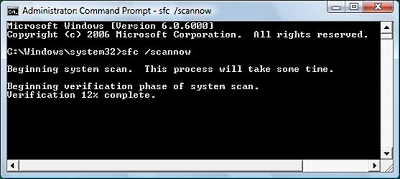
3. At the command prompt, type sfc /scannow.
The message "Beginning System Scan" will appear along with a verification progress report.
The System File Checker scans all system files to verify that they are correct for your version of Windows. If it finds a problem, it will attempt to replace the problematic files from the DLL Cache (%WinDir%\System32\Dllcache\). If the file is not in the DLL Cache or the DLL Cache is corrupted, the user will be prompted to insert the Windows installation DVD.
4. When the System File Checker has completed its report, close the Command window by typing exit next to the prompt.

More Maintain and Upgrade Your PC Articles:
• How to Update Your Computer's BIOS
• Printer Cartridge Price Fixing
• Recognize And Understand Home Networking Components
• Installing Memory
• Give New Life to Your PC Without Upgrading
• FREE Ebook - How to Speed Up a Slow Windows Computer for Free
• How to Upgrade Your PC's Graphics Card
• Create Your Own Super Control Panel
• Vista's New Boot Loader Architecture
• Installing A Power Supply