A Required DLL Was Not Found
By Stephen Bucaro
I would guess that thousands of Microsoft Windows users receive the message
"A required DLL was not found" every time they start Windows. They simply click the
"OK" button each time to cancel the message. It is an annoyance to have to cancel
that extra message box each time they start Windows. Some people have to cancel
several of these message boxes each time they start their computer.
The Windows operating system and application software on your computer use many
functions that are programmed into separate modules called Dynamic Link Libraries
(DLL). These DLLs are loaded into memory when needed and removed from memory when no
application is using the functions contained within them.
Many DLL’s used by the operating system are loaded each time Windows starts. In
fact the Windows operating system consists primarily of three main DLLs, KERNEL32.dll,
USER32.dll, and GDI.DLL. If Windows can’t find one of the main three, you will
receive the "blue screen of death". If Windows can’t find a less important DLL, it
may start in "Safe Mode".
When you install new hardware or new software, the installation may write entries
in one of Windows initialization files or in the Registry that calls for a specific
DLL to load when Windows starts. When you run uninstall to remove the program , it
may not remove the entries calling for the DLL. Or it may remove the DLL while
entries placed by another program that shares the same DLL still exist.
To fix the problem, record the name of the DLL that Windows can’t find. Then you
can either replace the missing DLL, or locate and delete the configuration entry that
calls for the DLL. It is safer to replace the missing DLL because the extra DLL
should not cause any problems, it will just take up space in memory. If you delete a
configuration entry and later find that it is required, you will have to re-enter
the information.
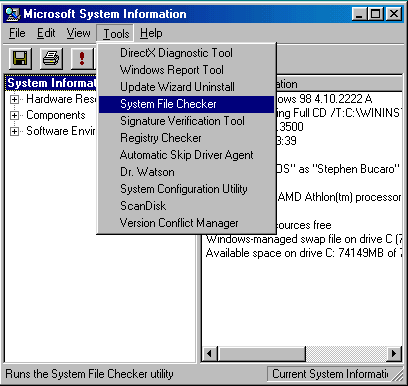
To replace the DLL you will have to reinstall the software that made the entry
calling for the DLL. If the DLL is a Windows system file and you are running Windows
98, try running the System File Checker. Select Start | Programs |
Accessories | System Tools, then open the System Information application.
In the System Information application's Tools menu, select System
File Checker. In the System File Checker dialog box click the Start button.
Note: Windows Me System File Protection feature does not let certain critical system files be removed.

| 

 About BTH
 User Agreement
 Privacy
 Site Map
 Contact
 News Feeds


 RSS Feed
 Follow @Stephen Bucaro
 Windows Troubleshooting
 Free PC Technical Support


