Windows Takes Too Long to Start
By Stephen Bucaro
Every software company thinks that their particular creation is the most important program in the world.
May of them think that their program should be configured to run every time Windows starts, whether you
like it or not. Unfortunately this causes Windows to take longer to start, and leaves a program taking
up space in your computer's memory.
There are three different places that the installation process for a program can configure the program to
load on startup: the Startup folder, the Registry, or one of Windows initialization files. If the person
who configured the installation process was kind, they just placed a link in the Startup folder.
Any programs or links in the Startup folder will be run when Windows starts. Use Windows Explorer to
navigate to the Startup folder at the path c:\Windows\Start Menu\Programs\StartUp. To prevent a program
from running when Windows starts, delete it's link (*.lnk) from this folder. If the programs executable
(*.exe) is located in this folder, move it to a different folder.
If the person who configured the installation process was not so kind, they just placed an entry in the
Registry. The Registry is actually a database that is compiled from the two files system.dat and user.dat
located in the c:\Windows folder. An error in the Registry can prevent your computer from starting. You
should backup these two files before editing the Registry.
Use the Registry Editor utility to check for an entry in the Registry. To use the Registry Editor,
In the Start menu, click on the Run... menu item. In the Run dialog box that appears,
type regedit in the Open: text box. The Registry consists of keys, sub keys, and values,
similar to how the Windows file system consists of folders, subfolders, and files. In fact you
navigate the Registry in exactly the same way that you navigate the file system.
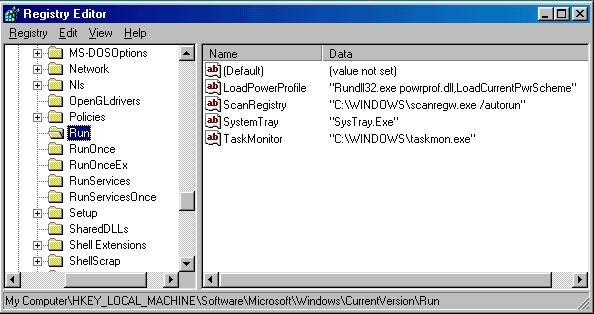
In the Registry Editor window's left pane, navigate to
HKEY_LOCAL_MACHINE\Software\Microsoft\ Windows\CurrentVersion\Run. Any programs or links listed under the
Run key will be loaded when Windows Starts. To prevent a program from running when Windows starts,
select the name of the program in the Registry Editor window's right pane. Then select Delete in the
Registry Editor's Edit menu. To close the Registry Editor select Exit in the Registry menu.
If you can't find an entry in the StartUp folder or the Registry, the installation process may have placed
an entry in one of Windows initialization files. The initialization files are win.ini, system.ini,
autoexec.bat, and config.sys. These files are remnants from Windows 3.1 and are not required for Windows 95
or higher. They are usually included for backward compatibility. If you have installed an old 16-bit program
an entry in one of these files is most likely.
Use the System Configuration Editor utility to check for an entry in the initialization files. To use
the System Configuration Editor, In the Start menu, click on the Run... menu item. In the Run
dialog box that appears, type sysedit in the Open: text box. The System Configuration Editor will
display all the initialization files. Click on an initialization files window to make it active, then select
Find... in the System Configuration Editor's Search menu. In the Find dialog box that
appears, type the name of the program in the Find: text box.
Search each of the initialization files in sequence. If you find an entry consisting of the name of the program
on a line that starts with load= or run=, Delete that line. If you make a change to any
initialization file, select Save in the File menu. To close the System Configuration Editor select
Exit in the File menu.
Restart Windows to verify that the program no longer loads when Windows starts. Now you don't have to wait
for that software company's beloved creation to load and take up space in your computer's memory every time
you start your computer.
More Windows Troubleshooting Articles:
• How to Fix Advapi32 Error
• PC Troubleshooting - No Sound
• Video - Dell Laptop CPU Replacement Tutorial
• NTOSKRNL Missing or Corrupt Error Message
• When Pesky Programs Won't Go Away
• Free Open Source CPU Temperature Monitor
• Troubleshoot Windows with Task Manager
• How to Fix propsys.dll Error
• The Windows Recovery Console
• Problems with Floppy Disks
| 

 About BTH
 User Agreement
 Privacy
 Site Map
 Contact
 News Feeds


 RSS Feed
 Follow @Stephen Bucaro
 Windows Troubleshooting
 Free PC Technical Support


