Anything noteworthy that happens in Windows is referred to as an "event" and is recorded in an "event log". Windows actually creates three logs, the Application log stores events related to applications. The Security log stores events related to security related events, for example user logons. The System log stores Windows operating system events. Most people ignore these logs; however, they can be very useful for troubleshooting purposes.
Welcome to Bucaro TecHelp!

Welcome to Bucaro TecHelp!
Maintain Your Computer and Use it More Effectively
to Design a Web Site and Make Money on the Web

[About BTH]  [User Agreement]  [Privacy Policy]  [Site Map]  [Contact Form]  [Advertise on BTH]  [News Feed]

Google
Web
This Site
Your Ad Here!
Your ad here for one full year, only $20. Send me your ad copy, up to six lines, I'll post it ASAP. After you inspect your ad online, you can pay through PayPal.
Click here for more information.

Troubleshoot Windows with Event Viewer

Anything noteworthy that happens in Windows is referred to as an "event" and is recorded in an "event log". Windows actually creates three logs, the Application log stores events related to applications. The Security log stores events related to security related events, for example user logons. The System log stores Windows operating system events. Most people ignore these logs; however, they can be very useful for troubleshooting purposes.

- Some applications create their own separate event log which is displayed in Event Viewer along with Windows standard Application, Security and System event logs. Sometimes an aplication will leave its event log behind after you uninstall it. You can remove the log by removing its subkey from the key:

Also remove the associated file from the folder:

\Windows\system32\config

It will have an .evt extension. But never remove AppEvent.evt, SecEvent.evt, or SysEvent.evt, the Application, Security and System event logs.

To view an event log, in Control Panel select the Administrative Tools. In the Administrative Tools window, select the Event Viewer. You can also open Event Viewer by selecting Start | Run and typing eventvwr.msc in the Run dialog box.
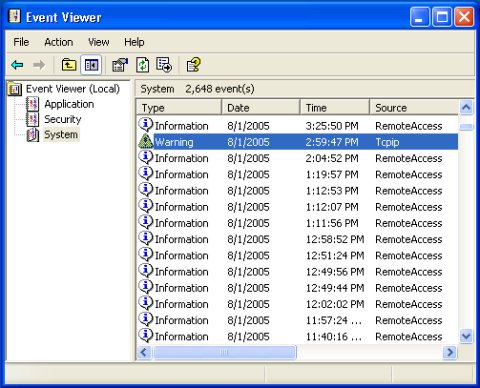
Event Viewer

There are three types of events, an Information event records that a task was performed successfully or that a service had a change of status. Information events are usually nothing to be concerned about. A Warning event records that a noncritical error occurred. If your system is recording a high number of Warning events from a single source, you might want to investigate the cause.

An Error event records that a critical error has occurred. You might want to investigate an Error event before it becomes a more serious problem. To view the details of an event, double-click on the event in the list. The Event Properties dialog box will open. The Event Properties dialog box Description section will display a description of the event, and maybe a link to a source of more information about that type of event.
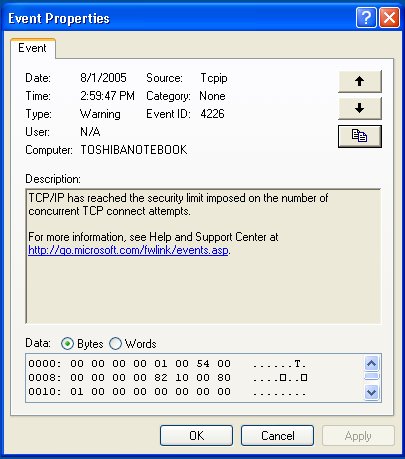
Event Properties dialog box

- Note the memory dump data at the bottom of the dialog box. This information would only be useful to Microsoft's programmers in India.

Computer Sections

RSS Feed RSS Feed


Click Here! Free PC Technical Support
Windows Troubleshooting
Microsoft's Support Websites
Computer and Component Manufacturers Support Links
Free Online Antivirus Scanners
What Should be in a PC Technician’s Tool kit?
Static Discharge Causes Flaky Damage
Windows Startup Modes for Troubleshooting
The System Information Utility
Diagnose a PC's Multimedia Functions
A Quality Freeware Hardware Diagnostic Tool
Free Detailed PC Analysis
Free Online PC Diagnostic Tests
A FREE RAM Diagnostic Tool
Troubleshoot Windows XP with Free Upgrade Advisor
Get Remote Technical Assistance
Troubleshooting a Dead Computer
A lot of Beepen and Tooten But No Booten?
Hard Drive Does Not Boot
Windows Don't Start Because of a Corrupted Registry
How to Create a Windows XP Boot Disk
Free DOS Boot Floppy Reads NTFS
How to Reinstall Windows XP
The Blue Screen of Death (BSOD)
Understanding the boot.ini File
How to Fix Overheating Computer
Windows Takes Too Long to Start
Windows Doesn’t Shut Down
Your Computer Can't Keep Time
A Required DLL Was Not Found
Troubleshooting DLL Problems
When Pesky Programs Won't Go Away
Fix System Information "Can’t Collect Information" Error
Can't Boot From CD or DVD Drive
Fix CD Writer Buffer Underrun Errors
Problems with Floppy Disks
How to Tame Your Mouse
How to Troubleshoot Your Computer's Mouse
No Computer Sound
Slow Log-on to ISP
How To Troubleshoot Video Display Problems
Printer Troubleshooting
Solving Image Problems on HP Laser Printers
Stop Hard Disk Thrashing
How to Recognize and Repair Power Supply Problems
How To Repair Hard Drive Problems
CD-ROM Problems
Buffer Underrun and Overrun Scenarios
How to Resolve Cable, DSL, and Dialup Modem Problems
How to Troubleshoot the Video Driver
Run Old Programs in Windows Vista
Troubleshooting Computer Freeze (Lockup) Problems
What's With All Those Error Messages?
View Hidden Devices with Device Manager
Troubleshoot Windows with Task Manager
Troubleshoot Windows with Event Viewer
Windows XP's Built-in Help and Support Center
The Windows Recovery Console
System Restore: The Big Undo
How to Fix Windows XP Errors
Create Recovery Discs for Windows Vista with HP Recovery Manager

TigerDirect
[Site User Agreement]  [Advertise on This site]  [Search This Site]  [Contact Form]
Copyright©2001-2007 Bucaro TecHelp P.O.Box 18952 Fountain Hills, AZ 85269

