
The Remote Assistance feature in Windows XP allows a support technician to connect to your computer over your local network or the Internet and see what you see on your computer screen and to use their keyboard and mouse to troubleshoot your computer.
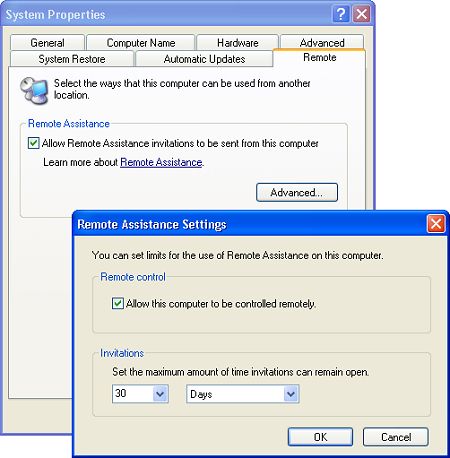
To Enable Remote Assistance
1. Select Start | Settings | Control Panel.
2. In Control Panel open the System utility (in the Performance and Maintenance section).
3. In the System Properties dialog box, select the Remote tab.
4. Set the checkbox next to "Allow Remote Assistance invitations to be sent from this computer".
5. Click on the [Advanced...] button to open the Remote Assistance Settings dialog box.
6. In the Remote Assistance Settings dialog box, set the checkbox next to
"Allow this computer to be controlled remotely" to allow the technician who
connects to take control of your computer. Here you can also set the amount of
time that you want to enable access to your computer.
7. In the Remote Assistance Settings dialog box, click on the [OK]
button. In the In the System Properties dialog box, click on the [Apply]
button, then click on the [OK] button.
To Get Remote Assistance
Now that your system is configured to accept Remote Assistance, you'll need to contact a support technician, usually by email, to provide that assistance. Both you and the technician must be connected to the Internet and running Windows Messenger. In Windows Messenger, contact the technician and then select Tools | Ask for Remote Assistance Service.
The support technician will receive the message and click on Accept in the message. A dialog box will appear where they must enter the password to your system. After the password is accepted, the Remote Session window will open where the support technician will see two Start buttons, the outside Start button controls the technician's computer, the inside Start button controls your computer.
The technician will click on the [Take Control] button located just above the task bar. At that point, a dialog box will appear on your computer asking you to confirm permission for Remote Assistance. Click on the [Yes] button. Now the support technician can see what you see on your screen and they can use their keyboard and mouse to troubleshoot on your computer.
Although the support technician now has control of your computer, it's usually better for the technician to tell you what to do and to monitor the results. This is because the mouse usually doesn't work smoothly over an Internet connection, and doing it yourself provides you with a learning opportunity.
• After the troubleshooting session is complete, be sure to disable Remote Assistance because leaving it enabled might create a security risk.

More Windows Troubleshooting Articles:
• A Quality Freeware Hardware Diagnostic Tool
• Use chkdsk to Find and Repair Disk Errors in Windows 7
• Diagnosing and Troubleshooting Computer Hardware
• PC Technician's ESD (Electrostatic Discharge) Protection
• What's With All Those Error Messages?
• Free Firewall - ZoneAlarm
• Windows 10 Built-in Memory Diagnostic Tool
• Troubleshooting a Dead Computer
• CD-ROM Problems
• Create Recovery Discs for Windows Vista with HP Recovery Manager
