
Every time Microsoft releases a new version of the Windows operating system, a whole slew of old programs stop working. Compatibility mode lets you run programs written for previous versions of Windows.
If an older program doesn't run correctly, start the Program Compatibility Wizard to make Vista simulate an earlier version of Windows. Open the Program Compatibility Wizard by selecting Start | Control Panel and selecting the Programs group. Under Programs and Features, select "Use an older program with this version of Windows".
• Do not use the Program Compatibility Wizard older antivirus programs, disk utilities, or other system programs. This might cause data loss or create a security risk.
• Note A compatibility problem might be caused by an old driver. If an old driver is causing a problem, you need to update it manually.
If a compatibility problem prevents you from installing a program, insert the installation disc for the program and, using the wizard, browse to the program's setup file, usually called Setup.exe, Install.exe, or something similar.
• The Compatibility Wizard is not designed to work with setup files that have an .msi file extension.
You can also change the compatibility settings for an individual program. To change the compatibility settings for a program, right-click the program's icon, then in the program's Properties dialog box that appears, select the Compatibility tab.
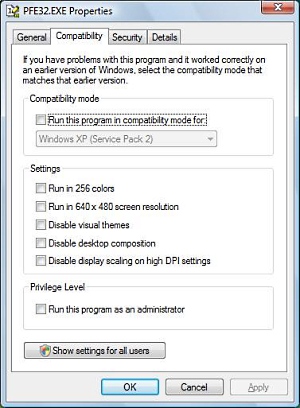
Listed below are some of the compatibility settings that you can set for a program.
[ ] Run in 256 colors
Some older programs were designed to use fewer colors. This setting uses a
limited set of colors in the program.
[ ] Run in 640 x 480 screen resolution
Some older programs were designed to use a smaller screen. Try this setting
if the program appears distorted.
[ ] Disable visual themes
Some older programs were not designed to use older menus or buttons. If you
have problems with the menus or buttons on and older program, use this
setting to disable themes.
[ ] Disable desktop composition
Some older programs were not designed to use transparency and other advanced
display features. If you have problems with the appearance of the program,
use this setting to turns off advanced display features.
[ ] Disable display scaling on high DPI settings
Some older programs were not designed to use scalable fonts. If certain sizes
of fonts are causing problems with the appearance of the program, use this
setting to turns off automatic resizing of programs.
[ ] Privilege level
Some older programs access computer resources that in Vista require administrator
privileges. This option sets the program to run as an administrator. To set this
option, you need to be logged on as an administrator.
When you've finished selecting the options that you desire, click on the [OK] button in the program's Properties dialog box.
Every time Microsoft releases a new version of the Windows operating system, a whole slew of old programs stop working. By using the Program Compatibility Wizard or by manually setting a programs Compatibility properties, you might be able to run programs written for previous versions of Windows.

More Windows Troubleshooting Articles:
• How to Fix Windows XP Errors
• Troubleshooting Broadband Cable Modem Problems
• Diagnose a PC's Multimedia Functions
• Fix DNS Server Not Responding on Windows 7
• How To Fix AppHelp DLL Errors On Your PC
• Fix System Information "Can?t Collect Information" Error
• Video - Common Laptop Problems
• Create Recovery Discs for Windows Vista with HP Recovery Manager
• Run Old Programs in Windows Vista
• Windows 10 Built-in Memory Diagnostic Tool
