
DirectX is a collection of application programming interfaces (APIs) for handling tasks related to multimedia, especially computer games and video, on Windows PCs. Originally, the names of these APIs all began with Direct, such as Direct3D, DirectDraw, DirectMusic, DirectPlay, DirectSound, and so forth. DirectX, then, was the generic term for all of these APIs and became the name of the collection.
The DirectX Diagnostic Tool (Dxdiag.exe) is a Windows built-in diagnostic tool included with DirectX to help you troubleshoot DirectX related issues. The default installation folder for Dxdiag.exe is: C:\Windows\System32. To start the DirectX Diagnostic Tool, click Start | Run, then type dxdiag in the Open dialog box, then click on the [OK] button.
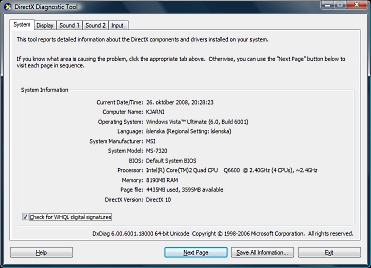
The number of tabs depends upon the PC's specific congifuration
Below is a description of each tab in the DirectX Diagnostic Tool dialog box.
System provides system information about your computer and specifies the version of DirectX that is installed on your computer.
DirectX Files lists the file name and the version number for each DirectX file that is installed on your computer, as well as the file name and the version number of many common files that are used by games that are running under DirectX.
Display lists your current display settings, and allows you to disable DirectDraw, Direct3D, and AGP Texture Acceleration. This tab also allows testing of DirectDraw and Direct3D. Passing these tests indicates that the DirectX Graphics runtime files are installed and operating correctly.
The Display tab also lists your device's available memory and can tell you if your video driver has passed Microsoft's Windows Hardware Quality Labs testing.
• Note the DirectX Diagnostic Tool cannot report memory that is in use at the time that it starts. Therefore, it is not uncommon to see less memory reported than your video card actually has.
Sound displays your current sound settings, and enables you to test DirectSound. The Sound tab can tell you if your audio driver is "Signed" - which indicates that it has passed Microsoft's Windows Hardware Quality Labs testing regimen.
The Hardware Sound Acceleration Level slider is used to correct audio glitches that might be caused by some audio drivers. Reducing the acceleration by one notch and re-testing the application is the best way to troubleshoot DirectSound audio problems. Lowering the Hardware Sound Acceleration Level from the default setting of "full acceleration" may disable advanced audio processing techniques, such as 3D spatialization from functioning.
Music displays your current MIDI settings, and enables you to test the DirectMusic component of DirectX. DirectMusic is a new component included in DirectX 6.1.
Input lists the input devices connected to your computer and the input drivers installed on your computer.
Network lists the registered DirectPlay Service Providers. These are the connection methods that DirectPlay will operate across. A registry problem here can normally be resolved by reinstalling DirectX.
The Registered Lobyable DirectPlay Applications section lists all applications that have informed DirectX that they will use DirectPlay for their network communication needs. A registry error here can normally be resolved by removing and reinstalling that application.
The DirectPlay test opens a chat window over DirectPlay using the settings you specify. Systems that cannot successfully chat with one another here will almost certainly be unable to establish a network connection within games.
• Each tab in the DirectX Diagnostic Tool dialog box provides a Notes text box which will display a warning message if the Tool detects a problem with the API related to that tab.
More Help If you cannot resolve your DirectX issue by using the previous troubleshooting tabs, you can use the More Help tab to continue troubleshooting the issue. The following list contains a description of the functionality of each button on the More Help tab:
• The [Troubleshoot] button starts a DirectX troubleshooter.
• The [Sound] button starts a sound troubleshooter.
• The [MSInfo] button starts Msinfo32.exe, a utility that gathers system information
about your computer. The file created by Msinfo32.exe can be sent to Microsoft
Technical Support to help resolve persistent issues.
• The [Override] button changes the DirectDraw refresh rate. Microsoft
does not recommend changing the DirectDraw refresh rate as a general troubleshooting step.

More Windows Troubleshooting Articles:
• Stop Windows Freezing and System Lockups
• Troubleshooting a Dead Computer
• Why Don't I Get Sound From My PC?
• Troubleshooting and Maintaining Your PC Desk Reference For Dummies
• How to Recognize and Repair Power Supply Problems
• Clear DNS Cache to Fix Network Issues
• Troubleshooting Computer Freeze (Lockup) Problems
• Video - Dell Laptop Memory Replacement Tutorial
• Windows 10 Built-in Memory Diagnostic Tool
• How to Fix Svchost.exe Error
