
If your HP computer is experiencing problems, a factory reset can be a quick way to fix your computer. The problem with this solution is that you will lose all your data on the computer, and you will need to run Windows updates after the reset. Backup any files you want to keep before you begin. This process will take a while so make sure the computer is plugged in or has a charged battery.
Use Windows Settings
1. Click Start, (the Windows logo in the bottom-left corner of the screen).
2. In the Start menu, click Settings (the icon that looks like a gear).
3. In the Settings menu, scroll down and click Update & Security.
4. In the Update & Security menu, click Recovery.
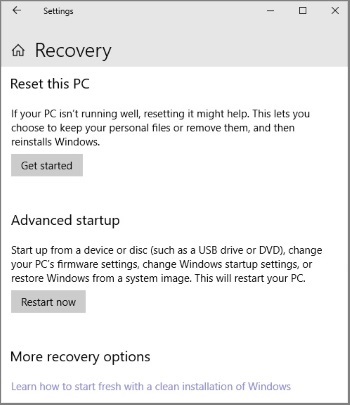
5. On the Recovery page, under "Reset this PC", click the [Get Started] button.
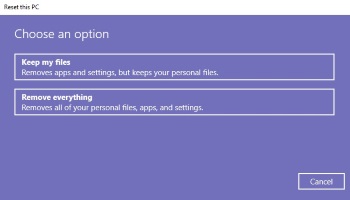
6. In the "Reset this PC" dialog box, click on Remove everything (the second bar on the bottom). This will start the process of restoring your computer to factory settings. This process will take a while and your computer will restart several times during the process.
• You can also click on Keep my files. This option will restore your computer to factory settings without removing your files. However, something in your files may be the cause of your computer problems, so this not be effective.

More Windows Troubleshooting Articles:
• The System Information utility
• Fix 0x80070035 Error on a Windows PC
• Windows 7 Startup Modes for Troubleshooting
• Clear DNS Cache to Fix Network Issues
• How to Fix CD-ROM Redirector Error
• Slow Log-on to ISP
• Video - Common Laptop Problems
• A Quality Freeware Hardware Diagnostic Tool
• How to Fix Sqmapi.dll Error
• Introduction to Windows 10 Resource Monitor