

It happens to the best of us - we buy a new computer, and it works great. It's fast, responds well, and does what you want it to. Just like a new car, you love driving, and can't imagine that one day it would ever feel like drudge work.
But that day will unfortunately happen. You can't expect your car to always work perfectly without regular tune-ups. Well, it's the same thing with your computer. It will begin grinding down, responding slower, and start-up boot times will take longer and longer. Why is this?
Most people know that "taking out the garbage" is one way to clean up their computer. Emptying the electronic trash bin, performing regular hard drive defrags and uninstalling little-used programs will help speed up your computer. However, one thing few people think about is the area that affects your computer's speed the most - the memory.
What often happens is that you will install a new piece of software - be it a video suite like Quicktime or an online reader like Adobe Acrobat - and these programs will, by default, load into your system right when you turn your computer on. Why do they do this? Well, the software makers say it's to load up their program faster. The reality is that it's a marketing tactic to make their program remain visible on your computer. They remain in your memory, consuming your computer's resources even when you don't use them. In my experience, the load time is not much greater if you do not have them in your memory in the first place.
What if you install a dozen other programs that "conveniently" load into your system as well? How about custom toolbars and control panels? All these programs loading into memory will eventually mean a snail will beat your computer in a race!
One way to disallow them from automatically loading is to go to each program's settings and uncheck an option that will say something along the lines of "Load at startup" or "Speed launcher" or some other fancy name. Another way is to go to your Start menu > Programs > Startup and delete anything that is showing in the menu. This won't delete the program, only the command to load at startup. However, this can be tedious and frustrating, as each program may have different settings, and some may not even give you an option! Luckily, there is one centralized way to do this - Msconfig.
Using Msconfig
Msconfig is one of the better utilities put out my Microsoft. Introduced with Windows ME and above, it gives you a central location to manage a variety of your computer's options. Before we take the tour, a warning - changing these settings can damage your computer, which is why Microsoft doesn't actively publicize this. Don't worry though, our only concern is to control what non-essential programs load into your computer.
The easiest way to access Msconfig is to click Start, then Run. Type msconfig into the box as shown:
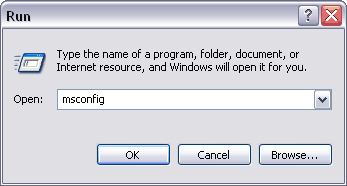
Click Enter, and you will be presented with the Msconfig screen. The tab we are concerned with is Startup. Ignore the others, as they are used for more advanced configuration settings.
The list presented in the Startup screen is every non-system program that loads into memory upon startup, whether you use it or not. On my computer, I have 25 programs that would LOVE to grab my attention by loading into my computer when I turn it on! Sorry, folks, I have all but one turned off.
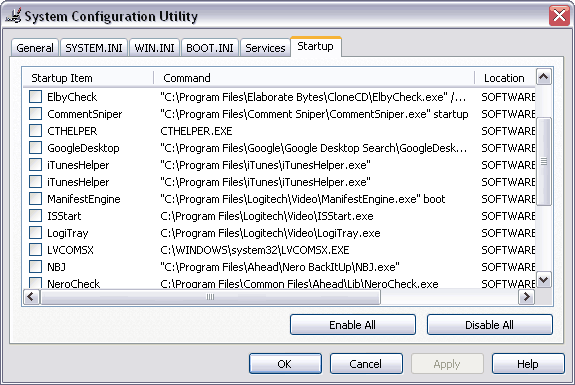
The first column is the program with a checkbox by it. The second column is where this start-up command resides. The third column is where the command is triggered. To make things look less "techie", ignore the third column. With your mouse, point to the line immediately before the "Location" title. Your mouse pointer will change. Click and drag to the far right to hide this part of the list.
Now, time to figure out what you want to deactivate. I would say nearly everything, except some programs you will want to run when your computer starts up, such as your antivirus software. Do you always use iTunes? Then you will likely wish to keep that checked as well.
Often, the program name will make you go "Huh?" In that case, write down the name and search for it on the web. Also, the name of the program and the directory it is in should give you a clue as to what it is. Some programs, like "itunesHelper" will be obvious. Others, like NBJ on my list, is not. However, looking at the Command section, the file path shows Program Files\Ahead\Nero Backitup\NJB.exe. Ah, so this program is Nero, a CD and DVD burning software I use. I never use its Backitup program (and if I did, why would I want it in my memory when I'm not using it?), so I have it unchecked.
You can uncheck nearly everything in your Start Up to drastically speed up your computer - Adobe software, Quicktime, RealPlayer, Microsoft Office, etc. The only result is that when you click to access the program, it will take a bit longer to load up. However, this couple extra seconds of inconvenience far outweighs having a slow computer all the time!
If you find that you do wish to have a program load upon start up, simply go into Msconfig at a later time and recheck the box.
Once you are finished, Windows will ask you to restart. When your computer reloads, you will get a warning stating that you have changed your Msconfig. Simply check the box to "Do not show this again" to remove the warning. Otherwise, you will get this message every time you reboot. Whenever you make changes to Msconfig, this warning will always appear, so remember to check the box.
You now have a secret weapon in your arsenal to keep your computer fast and your memory unencumbered. Whenever you install a new program, you should check and see if it loaded a "convenient" startup command into your system. Most often, these commands are simply a marketing tactic to remain visible in your System Tray on the bottom right. Fortunately, you have the power to control what you want and don't want automatically loading into your system.
Chris Molnar is the publisher of The Slow Computer Emergency Repair Kit, where he takes you through no-nonsense, visual steps in plain English to speed up your slow working computer.
Learn more at amazon.com

More Windows Administration Information:
• How to Disable Windows Firewall in Windows 7
• Create a Windows 7 System Repair Disc
• Video - Microsoft Remote Desktop - Part One
• Configure Windows 10 to Search Windows Only
• How to Optimize Your Solid State Drive
• PC Technician's Software Copyright Responsibilities
• DOS Switches and Wild Cards
• Windows Event Logs for Maintaining or Troubleshooting Your PC
• How to Audit Security Permissions and Access Rights in Active Directory
• Use PowerShell and WMI to Get CPU Information