

DEP (Data Execution Prevention) is a Vista security feature that helps to protect your computer from viruses and other security threats. Harmful programs can try to attack Windows by attempting to execute code from memory locations reserved for Windows. DEP can help protect your computer by monitoring your programs to make sure that they use system memory correctly.
If DEP notices a program on your computer using memory incorrectly, it closes the program and notifies you that the programs execution has been blocked. By default DEP is set to protect only Windows operating system files. However, you can configure DEP to protect all programs on your computer.
1. Open Control Panel and select the System and Maintenance group.
2. On the System and Maintenance page, select System.
3. In the left pane of the System Information page, select Advanced System Settings. (If the User Account Control warning box appears, click on the [Continue] button.
4. In the System Properties dialog box that appears, on the Advanced tab, click on the [Performance] button.
5. In the Performance Options dialog box that appears, select the Data Execution Prevention tab.
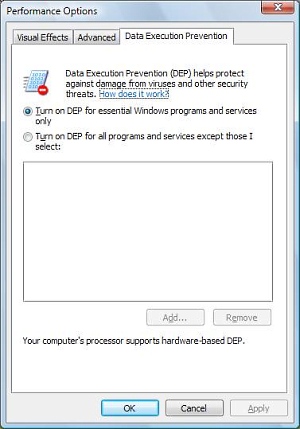
DEP is a set of hardware and software technologies, if your system does not have the hardware capability to perform DEP, Vista will run a software-based version of DEP. DEP also requires the program that it's protecting to be DEP compatible. If a particular program is not DEP compatible, it could cause them to run erratically or not at all.
Older application programs may not be DEP compatible. If DEP notifies you that a program that you're trying to use is being blocked, you can turn Off DEP for that individual Program. Make sure that the program DEP is notifying you is being blocked is not a virus.
To turn off DEP for an individual program: In the Performance Options dialog box, on the Data Execution Prevention tab, set the radio button next to "Turn on DEP for all programs and services except those I select". Click on the [Add...] button, and in the Open dialog box that appears, navigate to the executable file (.exe) for the program that you want to exclude. Click on the [OK] button then restart your computer.

More Windows Administration Information:
• Make Windows 10 File Explorer Open to This PC instead of Quick Access
• A Brief Introduction to 3D Printing
• How to Setup a VPN Between Two Computers
• Internet Connection Sharing in Windows XP
• How to Manually Register DLL in Microsoft Windows
• Script to Display the Processes Running on a Computer
• Video - Microsoft Remote Desktop - Part Two
• Windows 7 Tweaks
• Disable Automatic Wireless Configuration in Windows 7
• What is Windows Aero and Mouse Gestures?