

When you perform a search on Windows Vista, you can actually search the "contents" of files. Searching files is a very slow process, but Windows can produce the results in seconds. How is this possible? It's possible because Windows keeps a database, called an "index", of all the files on your computer. It's great to get results quickly, but there's a price to pay.
The service that creates the index, called the "Indexing Service", has to continuously monitor the files on your computer for changes and update it's database when changes or new files are found. This uses processor time and can take up more than a megabyte of ram. You may notice when just you're sitting in front of your computer, not executing programs or saving files that the hard drive starts working very hard. That might be the Indexing Service working to update it's database.
If you commonly search only ceratin folders, you can reduce the amount of work performed by the Indexing Service by configuring the indexing options. Select Control Panel | System and Maintenance | Indexing Options and in the "Indexing Options" dialog box remove any folders that you rarely search from the index.
If you rarely use Windows Search feature, and you find it anoying to hear your hard drive working very hard when you're not performing any drive intensive tasks, you can disable the Indexing Service. To disable Indexing Service, Select Control Panel | System and Maintenance | Administrative Tools | Services.
If the User Account Control dialog box appears, click on the [Continue] button.
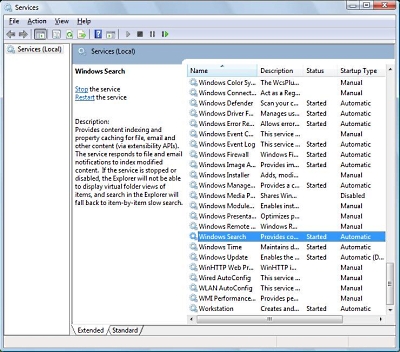
In the Services window that appears, scroll down to, and right-click on Windows Search. In the popu-up menu that appears, select Properties.
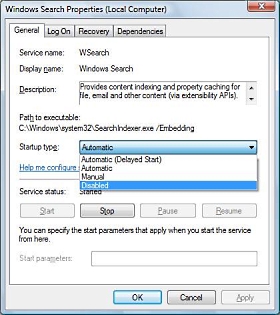
In the Windows Search Propeties dialog box that appears, in the Startup type: dropdown list, select Disabled. Then under Service status, click on the [Stop] button. When the Service status indicates Stopped, click on the [OK] button to close the dialog box.
With the Indexing Service stopped, you can still search just the same as always, except Windows Search has to build an index, in real time, of the folder(s) you select to search, so receiving results may take longer than if the Indexing Service had been running.

More Windows Administration Information:
• How to Disable Windows Firewall in Windows 7
• Network Security Through the Principle of Least Privilege
• Font Basics
• How to Reset Windows 7 Password
• Easy PC to PC Files and Settings Transfer Cable
• How to Disable Windows 10 OneDrive
• The Fastest Way to Move PC to PC
• Script to Display the Processes Running on a Computer
• Windows 10 New Storage View
• Windows Server 2003 Active Directory and Network Infrastructure