

One of the most important things you should have with your PC is a System Repair Disc. A System Repair Disc can be used to restore your operating system in the event of a catastrophic failure. Your Windows installation disc can be used as a System Repair Disc, but you usually don't receive an installation disc with a brand name PC. Instead, the PC manufacturer provides you with a "Restore Disc".
Don't confuse a Restore Disc with a System Repair Disc. A Restore Disc can be used to restore your operating system, but it also restores all the unwanted "crapware" that you put so much work into removing from your PC. My new Acer laptop PC didn't even come with a Restore Disc, instead I'm supposed to purchase three DVD-Rs and use a utility that came with the PC to put their massive amount of crapware on Restore Discs.
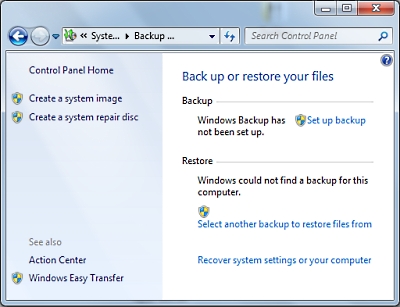
To create a System Repair Disc, open the Control Panel and, in the System and Security group, click on Backup and Restore. In the Backup and Restore window's left panel, click on Create a System Repair Disk. A dialog box appears instructing you to "Select a CD/DVD drive and insert blank disc into the drive."
The dialog box also provides the following information: "A system disc can be used to boot your computer. It contains Windows system recovery tools that can help you recover Windows from a serious error or restore your computer from a system image."
When Window's completes burning the System Repair Disc, a dialog box appears with the following information: "You can use the system repair disc to access recovery options that can help you recover your computer from a serious error. Please label your disc with the following information..."
Now that you have a System Repair Disc, should your PC have a catastrophic failure, you can insert the disc into the drive and boot to the "System Recovery Options" screen. There you can choose to recover your system from the System Repair Disc or, if you can choose the "Command Prompt" option if you have the technical ability to use DOS commands to troubleshoot and repair your system.

More Windows Administration Information:
• DOS Switches and Wild Cards
• Windows 10 Diagnostic Data Send to Microsoft
• How to Optimize Your Solid State Drive
• NTFS Permissions
• What is the difference between MSI and EXE Installations?
• CompTIA Security+ Made Easy
• View a Brief List of Windows 10's Recent Problems
• Synchronize Your PC's Clock with an Internet Time Server
• Computer Technician's Guide to Dealing with Customers
• Script to Display the Processes Running on a Computer