
In Windows 7, the logon screen usually contains a picture that you choose when setting up the computer and a default user name. Since I purchased my computer from Best Buy, the picture was already set and the user name was simply User. Not very unique! The first thing I did when I got my computer was to change the user name and change my user picture. That is what I'll explain in this article.
Change User Name in Windows 7
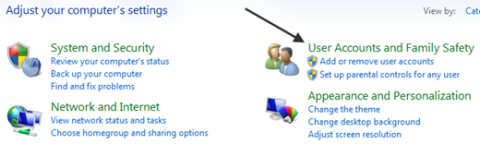
First, click on Start and then Control Panel. Then click on User Accounts and Family Safety.
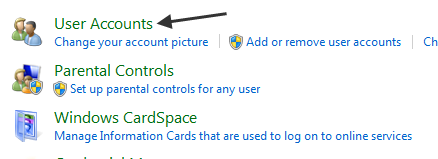
On the next screen, click on the User Accounts heading at the very top.
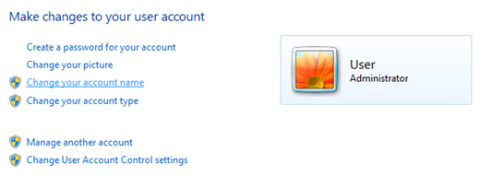
Finally, click on Change your account name to actually change the user name. If you want to change the user name for a different account, click on Manage another account.
Now type in the new user name that you desire and click the Change button.
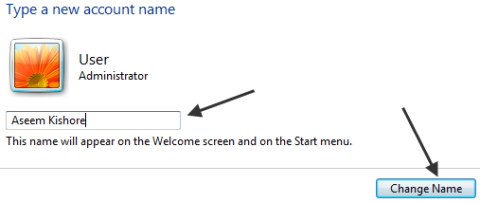
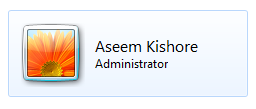
That's it! Once you click Change, you'll be back to the previous screen with a preview of the new login screen.
Change User Picture in Windows 7
To change the user account picture, simply click on the Change your account picture link in the second step above.
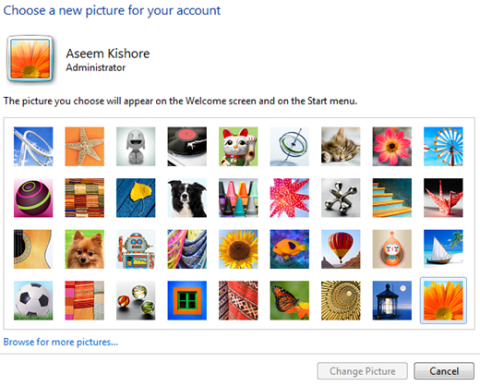
You can either choose from the default pictures in Windows 7 or you can click the Browse for more pictures link. Once you have chosen the desired picture, click on the Change Picture button.
Change/Create User Password in Windows 7
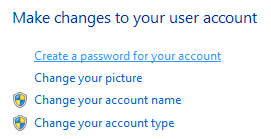
If you want to create a password for your user account or change the current password, click on the Change Windows password link.

If you don't already have a password setup for your user account, you can click on the Create a password for your account link, otherwise you can click Change your password.
So those are the most common three tasks when managing user accounts in Windows 7.
Password recovery, Safely and easily reset Windows passwords, Access Password, Outlook password. Using a few minutes an administrator's password or user password Unlocker. [passwordunlocker.com redirected].

More Windows Administration Information:
• Disable Windows 10 Automatic Updates
• Set the User's Profile Information
• DOS Tasklist and Taskkill Commands
• How to Optimize Your Solid State Drive
• Top Ten RAID Tips
• Windows Server 2003 Active Directory and Network Infrastructure
• Windows 7 Tweaks
• CompTIA Security+ Made Easy
• Configuring Windows as a NTP (Network Time Protocol) Server
• Configure Windows 10 to Search Windows Only