
Windows provides two services that configure your PC to connect to a wireless network. WLAN AutoConfig which sets up your computer to connect to a wireless local area network, and WWAN AutoConfig which sets up your computer to connect to mobile broadband services. Both of these services are started automatically when you start your PC. However, if you don't use a wireless network or mobile broadband, for security reasons you may want to disable these services.
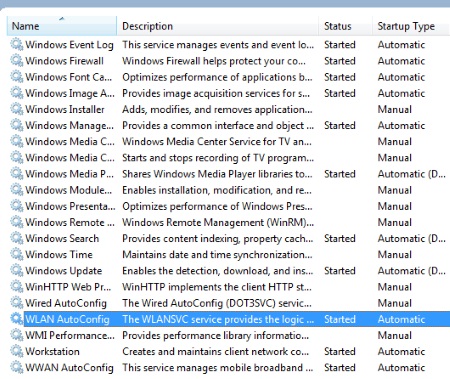
To disable WLAN AutoConfig and WWAN AutoConfig, select the Administrative Tools group in Control Panel. In the Administrative Tools window, double-click on Services. In the Services window, scroll down to WLAN AutoConfig. Double-click on WLAN AutoConfig, and in the WLAN AutoConfig Properties dialog box that appears, change Startup type to Manual. Click on the [Apply] button, then click on the [OK] button.
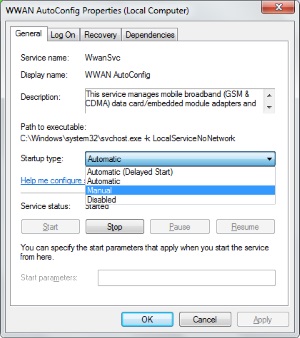
Similarly, to disable WWAN AutoConfig, in the Services window, scroll down to WWAN AutoConfig. Double-click on WWAN AutoConfig, and in the WWAN AutoConfig Properties dialog box that appears, change Startup type to Manual. Click on the [Apply] button, then click on the [OK] button.
Since both of these services were already started, you'll need to restart your PC to make the new startup methods take effect. Now you have one more assurance that someone can't hack into your computer wirelessly.

More Windows Administration Information:
• Uninstall OneNote from Windows 10
• Tweaks to Speed Up Internet Streaming Video
• Restrict Web Browsing With Internet Explorer
• Computer Technician's Guide to Electronics Disposal and Recycling
• CompTIA A+ Complete Study Guide
• The Security and Maintenance of Messages in Outlook Express
• Turn Off Windows XP Service Pack 2 Firewall
• Msconfig - Microsoft's Secret Weapon to Increase Your Computer's Speed
• How to Configure the msdos.sys file
• Disable Windows 10 Automatic Updates