
Windows 10 is not an operating system in the sense that previous versions of Windows were. It's primarily a marketing device. Cortana is Microsoft's automated voice sales person. The Windows search is now designed to search Microsoft's Store first. Automatic Update is no longer used primarily to fix security issues. In Windows 10 Automatic Updates are primarily used to bind the operating system tighter to Microsoft's Store.
Not only is Microsoft making the Windows operating system into a marketing device, but they are also making it more and more difficult to disable these advertising push functions. In other words involuntary in-your-face advertising. To protect yourself from this pervasive advertising you need to disable Windows Update service.
1. Open a Management Console by typing services.msc into the Windows Search box.
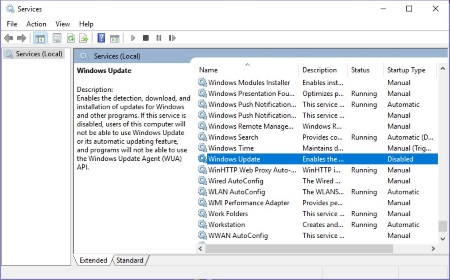
2. Find Windows Update in the list of services. Double-click on the Windows Update name.
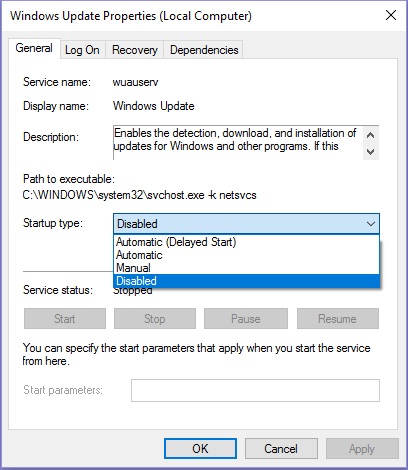
3. In the Windows Update Properties dialog box, in the Startup type: drop-down list, select Disabled.
3. Click on the [Apply] button, then click on the [OK] button.
The description in the Management Console warns you "if you disable this service you will not be able to install updates". So if you desire to perform an update some time in the future, you can use the services.msc to manually start the service. But don't be surprised if Microsoft uses the opportunity to configure your system for involuntary advertising.

More Windows Administration Information:
• What is the difference between MSI and EXE Installations?
• How to Disable Windows Firewall in Windows 7
• Command Line to Get Computers Model, Vendor, and Serial Number
• Easy PC to PC Files and Settings Transfer Cable
• Make Windows 10 File Explorer Open to This PC instead of Quick Access
• NTFS Permissions
• How to Change Process Priorities in Windows Task Manager
• Video - Microsoft Remote Desktop - Part Two
• Server Virtualization - What It's All About
• How to Reset Windows 7 Password