
As a system administrator, the first thing you would like to have when attempting to resolve a system problem is information about the system. The System Information utility collects and displays this information for you.
You can access a graphics version of the System Information utility in Windows 10 by clicking on the Start menu, in the Start menu scroll down to the bottom and expand the Windows Administrative Tools item, then click on the System Information item.
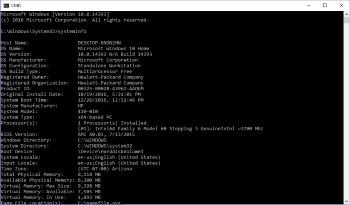
But a system administrator may need or want to access system information from a command prompt. The DOS command line interpreter is at C:\Windows\System32\cmd.exe. To get system information, open a DOS prompt and enter the command shown below:
C:\Windows\System32>systeminfo
After a brief period of gathering information, the systeminfo command will provide a huge amount of information about your system:
• Computer name
• Windows version
• System Manufacturer
• Processor model amd speed
• BIOS manufacturer and version
• Boot device
• Total physical memory
• Virtual memory
• Network card manufacturer
• Hyper-V requirements status
• Plus lots more
• Hyper-V allows running virtual systems
Using the DOS systeminfo command is the quickest way to get information about your system.

More Windows Administration Information:
• Windows 7 Tweaks
• DOS Switches and Wild Cards
• How to Optimize Your Solid State Drive
• How to Change Process Priorities in Windows Task Manager
• Disable Indexing to Speed Up Your Computer
• Create and Change Password, Picture and User Name in Windows 7
• Disable Kernal Paging to Speed Up Windows
• SMART Disk Drives Warn You Before They Fail
• Planning a Backup and Restoration of Files for Disaster Recovery
• Turn Off Windows XP Service Pack 2 Firewall