
Most operating systems have a text-based interface called a "shell" that allows users to enter commands to access that operating system. The Command Prompt, also known as CMD, was the shell for the Microsoft DOS operating system, and it can still be used today. But it is now accompanied by the Windows PowerShell. Just as the command shell had .bat scripts, PowerShell has cmdlet scripts.
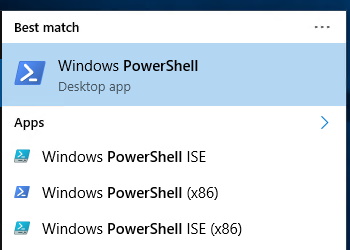
You can find PowerShell by typing PowerShell into the taskbar search textbox. This will open the Start menu, and on windows 10 display four different shortcuts for PowerShell as shown above.
PowerShell which looks like the old DOS command shell, except with a PS prompt instead of C:\>
PowerShell (x86) is a 32-bit version in case you happen to be running a 32-bit version of Windows 10
PowerShell ISE is Integrated Scripting Environment. To me its almost like an IDE, Integrated Programming Environment
PowerShell ISE (x86) is a 32-bit version of the Integrated Scripting Environment
Most modern PCs are running the 64-bit version of Windows 10. The top Windows PowerShell icon will run the 32-bit version if your system is 32-bits, or it will run the 64-bit version if your system is 64 bits.
To check your version of PowerShell, click on the top Windows PowerShell icon, and next to the prompt, type the command shown below:
$PSVersionTable
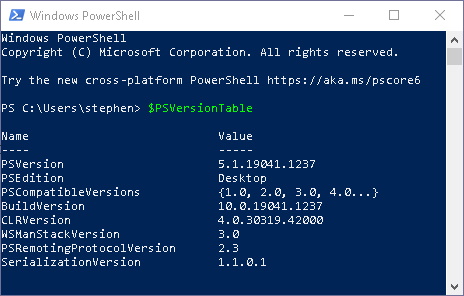
To close PowerShell, next to the prompt, type exit

More Windows Administration Information:
• PC Technician's Software Copyright Responsibilities
• The Different Types of Virtualization
• DOS Switches and Wild Cards
• Network Security Through the Principle of Least Privilege
• What is Windows Aero and Mouse Gestures?
• Installing a Local Printer on Windows Vista
• Environment variables in PowerShell
• Retrieving Information from Computers Belonging to an Active Directory OU
• How to Disable Windows Firewall in Windows 7
• How to Backup Mails and Address Book of Outlook Express