
We all know the advantages of the Linux operating system. It's more stable, more secure, and free of abusive licensing and product activation schemes. But Linux hasn't taken over as the desktop operating system of choice. That's because of its reputation as being complicated to install, difficult to use, and lack of practical applications.
Installing Fedora is as simple as inserting the first CD-ROM into the drive and rebooting. With the release of the OpenOffice.org office suite, the lack of practical applications problem is gone. The thing first you need to know when moving to a new operating system is how to manage files.
In this article, you'll learn that managing files in Linux is just as easy as iit is with Windows, but without the abusive licensing and product activation schemes. The version of Linux we'll explore is Fedora 3 , but all versions of Linux will work similarly.
As with the Windows operating system, with Linux you could use the command line to manage files. But people don't like using the command line. We'll use a graphical file manager named Nautilus. Nautilus is the file manager that comes with the GNOME (pronounced guh-nome) desktop.
There are many other graphical desktops available for Linux - a popular one being KDE. Many Linux users prefer KDE because it comes with an office suite. However, the GNOME desktop has now adopted OpenOffice.org as its office suite. Fedora 3 installs GNOME as the default desktop.
GNOME can't create graphical elements by itself. It sits on top of the open-source X Window System. The X Window System (X Windows) used by Linux is maintained by the X.Org Foundation. It's X Windows that draws buttons, text boxes, dialog boxes, and windows on the computer screen. The Linux installation program (Anaconda) configures X Windows for your computer, but if you install a new video card, you may need to reconfigure X Windows.
This article assumes that you have X Windows configured and that you are using the GNOME desktop. You can launch the Nautilus file manager from the GNOME task bar. Choose "File Browser" in the "Applications" menu. The file manager will open the "home" directory if you are logged in as a user, or the "root" directory if logged in as "root". This article assumes that you are Logged in as "root".
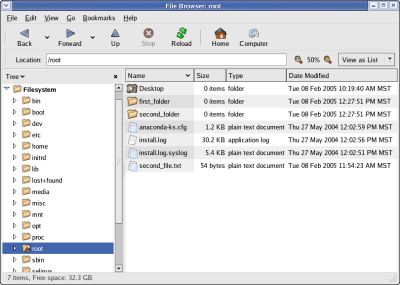
The navigation window is divided into a left pane and a right pane. In the right pane you can choose to view files as icons or as a list. If viewing as icons, to the right of the "Location:" text box you see two magnifier icons that let you control the size of the icons. I prefer to view files as a list. To the right of the magnifier icons is a drop-down list that lets you select to view as list.
The navigation window left pane provides several viewing options, "Information" being the default. I can't think of a need for any viewing option other than "Tree". From the drop-down list at the top of the left pane select "Tree".
In Nautilus's main menu, select Edit | Preferences. In the "File Management Preferences" dialog box which appears, you can configure the default views. Nautilus will retain these settings the next time you open it.
The Nautilus file manager lets you perform all the standard file operations: create, copy, rename, move, and delete files and folders. You could create a file by right-clicking in the right pane and selecting "Create Document" in the popup menu, but instead, let's use a text editor to create a file.
To launch the Text Editor, in GNOME's task bar Choose "Accessories | Text Editor". Enter some text in the Text Editor and save the file with the name first_file.txt in the tmp folder (by clicking on the arrow next to "Browse for other folders") in the "Save as..." dialog box.
The tmp directory is where Linux stores temporary files. Fedora is configured by default to check the tmp folder each day and delete any files that have not changed in ten days. So let's place a copy of the file in the root folder. Navigate to the tmp folder in Nautilus left pane, then in the right pane click on the file name and select "Copy File" in the popup window. Then navigate to the root folder in Nautilus left pane. Right-click in the right pane and select "Paste Files". A copy of the file will be created in the root folder.
Navigate back to the tmp folder and right-click on the file name first_file.txt, and select "Rename..." in the popup window. The file name becomes editable. Change the name of the file to "second_file.txt". Hit the keyboard "Enter" key or click somewhere in the right pane to complete the file name change, then click on the file name and drag it to the root folder in the left pane. This moves the file to the root folder.
Navigate to the root folder and right-click on the file name first_file.txt. In the popup menu, select "Move to Trash". This moves the file to the "Trash Bin".
Folder operations are identical to file operations, for example right-click in the tmp folder and in the popup menu select "Create Folder". This creates a folder named "untitled folder". Right-click on the folder name and select "Rename..." in the popup window. The folder name becomes editable. Change the name of the folder to "first_folder".
Copying a folder is the same as copying a file. In fact, you use "Copy File" and "Paste Files" to copy a folder. To move a folder, you drag-and-drop it from source to destination. To delete a folder, you right-click on the folder name and select "Move to Trash" in the popup menu.
Copying files to floppy disk in Linux is a little strange to Windows users. Before you can copy a file to a floppy disk, you have to "mount" the drive. Double-click on the desktop "Computer" icon, then right-click on "Floppy Drive" and select "Mount Volume" in the popup menu.
A floppy drive icon will appear on the desktop. You can then drag-and-drop files to the floppy drive icon. But the files will not actually be copied to the floppy disk until you unmount the floppy drive. Unmount the floppy drive by right-clicking on the floppy drive icon and selecting "Unmount Volume" in the popup menu.
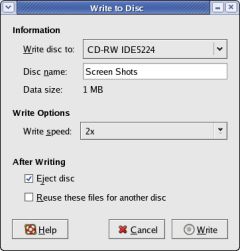
To burn files to a CD or DVD, insert a writable disc into the drive. The "CD/DVD Creator" window appears. Drag-and-drop the files from Nautilus file manager to the CD/DVD Creator" window. In the CD/DVD Creator menu, select "File | Write to Disc...". The "Write to Disc" dialog box will appears. In the "Write to Disc" dialog box, enter a name for the disc and select a writing speed. Set the "Eject disc" or "Reuse these files for another disc" after Writing" check boxes. Then click on the "Write" button. The "Writing Files to Disc Progress" dialog box will appear. Click on the "Close" button when writing is complete.
After using Linux to copy files to a floppy disk and CD-R, I was able to read the floppy disk and CD-R with a computer running Windows. So not only is Linux file management just as easy as Windows file management, you can also use floppy disk or CD-R to easily transfer data between systems.

More Windows Administration Information:
• Connecting Linux to the Internet
• Commands to Display Your Linux Computer's Hardware Information
• Set Up a Minimal Server on a Raspberry Pi
• Choosing a Printer for Linux
• What Is the Android Operating System?
• What is Bash?
• Running Windows Applications on Linux
• Linux su vs sudo: What's the Difference?
• What is Linux?
• What is Bash?