Installing an Optical Drive
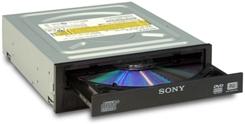
Selecting Fast, Inexpensive CD/DVD/HD DVD/BluRay Optical Drives, What to
Look For in a Optical Drive, and How to Install Them.
What Is An Optical Drive?
To the hi-tech newcomer, the term optical drive may not mean very much.
Simply put, the optical drives read (and may write) CDs; DVDs, HD DVDs; and
BluRays. Virtually every modern PC contains an optical drive (either
internally or externally), used as a media player, for installing new
software, or as large capacity storage medium for computers.
Information is stored on high-density disks in the form of tiny pits
"read" by laser. The term refers to the general category of disk drives
that read information optically, using a low-powered laser. Large 12inch
Pioneer LaserDiscs drives (1982) were the first optical units available
on PCs, with CD-ROM drives from Sony appearing in 1983. CD-ROM drives
were the breakthrough product, that began as novelties for high-end
users and then grew in popularity as they dropped in price and increased
in performance. By The mid-1990's, the point arrived where they were
mandatory equipment on any new PC system.
Optical drives are considered a part of the storage subsystem of your
computer, be it a notebook, a desktop, or a server. They usually
interface either through the standard IDE/ATA controller ports on the
motherboard, a SCSI interface host adapter, or a dedicated adaptor card,
but may also interface through a USB port or a Firewire port, or
integrated into a network storage device. The optical drive in a system
is an important factor in the PC's ability to install and run software,
since most software is now distributed on optical disks (CDs, and now more
than ever on DVDs, in the future perhaps Blu-ray). In the case of writeable
optional drives (CD or DVD Burners), they also are often the only real
backup devices in the PC (as hard disks continue to increase their capacity,
optical media is somewhat keeping pace).
Types of Optical Drives
Today we have not just CD-ROM drives, but DVD drives, and Blu-ray
drivers. We also have writeable and rewriteable CD-ROM drives, called CD-R
and CD-RW respectively. These expand the capabilities of optical drives by
letting you actually write to CD-ROM media.
Adding a fast optical drive will increase your PC’s flexibility an life span.
Optical drives usually have a physical connection to the sound card, or
audio circuits on the motherboard. Optical drives also usually send data
to the system through the motherboard. When you purchase an optical drive
you want too match the interface to that of the system, usually IDE/ATA or SCSI.
|


 About BTH
 User Agreement
 Privacy
 Site Map
 Contact
 News Feeds


 RSS Feed
 Follow @Stephen Bucaro
 Windows Troubleshooting


