IEEE 1284 Parallel Port
By Stephen Bucaro
A parallel port transmits data eight bits at a time using eight parallel connections. The parallel port
was primarily used to connect a printer to a PC, although later, higher speed parallel ports were also
used to connect external hard drives and other devices to the PC. Today, the parallel port is obsolete,
being replaced by the USB port. Although now obsolete, millions of parallel port printers were manufactured
and no doubt many of them are still in use today.
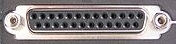
If you see a DB-25 connector (D-shaped connector with 25 pins) on the back of a PC, it's sure to a parallel
port. Parallel ports almost always used female DB-25 connectors. Parallel ports are bidirectional because
the port can send and receive 8 bits of input and output over its 8-bit bus, which used pins 2 through 7
and 18 through 25. The printer end of the parallel cable used a 36-pin Centronics connector. That's because
when the first PC with a parallel port came out in 1987, Centronics had already been making printers since
the 1970s, so their interface was the defacto standard.

In 1991 Intel, Xircom, and Zenith got together to develop a faster parallel port which they called Fast
Mode parallel port, or Enhanced Parallel Port (EPP). Compared to the standard parallel port speed of about
150 KBps, EPP had a speed of about 2MBps and it was bidirectional. It used the same DB-25 as the standard
parallel port.
About a year later, Hewlett Packard came out with the Extended Capabilities Parallel Port (ECP). It was
also bidirectional and it achieved slightly faster speeds by using a DMA (Direct Memory Access) channel.
However, at that early time, before plug-and-play was released in late 1995, configuring PC resources
was a nightmare, and ECP frequently caused resource conflicts.
In 1994 the IEEE 1284 standard was released which defined that EPP and ECP should be backward compatible
with the standard parallel port. Most PCs built after 1994 support standard, EPP, and ECP modes. However
an older parallel cable, noncompliant with IEEE 1284, may not work properly with EPP or ECP.
The IEEE 1284 standard also defines the parallel port connectors Type A, Type B, and Type C. Type A is
the standard DB-25 connector used on most PC systems. Type B is the standard 36-pin Centronics connector
found on most printers. Type C is a 36-pin mini-connector that used on some HP printers.
The IEEE 1284 standard does not define a maximum cable length, however a parallel port is generally used
a over short distances. In general you should use a cable no longer than 15 feet (4.6 meters).
Parallel ports are designated as LPT1 (from Line Printer 1) and LPT2. Each port needs an IRQ (Interrupt
Request Line) and an I/O address range assignment. By convention LPT1 uses IRQ7 and I/O address range
3BC-3BF (hex), LPT2 uses IRQ5 and I/O address range 378-37A. You configure these resources using the
PCs CMOS BIOS setup.
| 

 About BTH
 User Agreement
 Privacy
 Site Map
 Contact
 News Feeds


 RSS Feed
 Follow @Stephen Bucaro
 Windows Troubleshooting


